


You’ve set your goals and personalized your profile—now it’s time to create your first LinkedIn post! Dynal.AI streamlines every step of the process, from sourcing ideas to polishing your final draft. Whether you start with a link, a file, or just an idea, the platform’s AI will help you turn it into a compelling, on-brand post that’s ready to publish. In this guide, we’ll show you exactly how it works—with screenshots and pro tips for maximum impact.
Table of Contents
- Why Smart Content Creation Matters
- Adding Your Source: Start Anywhere
- Managing and Selecting Sources
- Generating Your First Draft
- Editing & Customizing Your Content
- Pro Tips for Fast, Quality Posts
- Next Steps
Why Smart Content Creation Matters
Most professionals struggle with content creation—not because they lack ideas, but because turning those ideas into engaging posts can be time-consuming and daunting. Dynal.AI solves this by:
- Eliminating blank-page anxiety: The AI generates solid first drafts from your sources.
- Speeding up your workflow: Turn inspiration into ready-to-edit content in minutes.
- Ensuring consistency: Maintain your tone and objectives across every post.
Adding Your Source: Start Anywhere
With Dynal.AI, inspiration can come from anywhere—a link, document, image, or just a quick note. Here’s how to get started:
- Click “Add source” at the top of your dashboard.
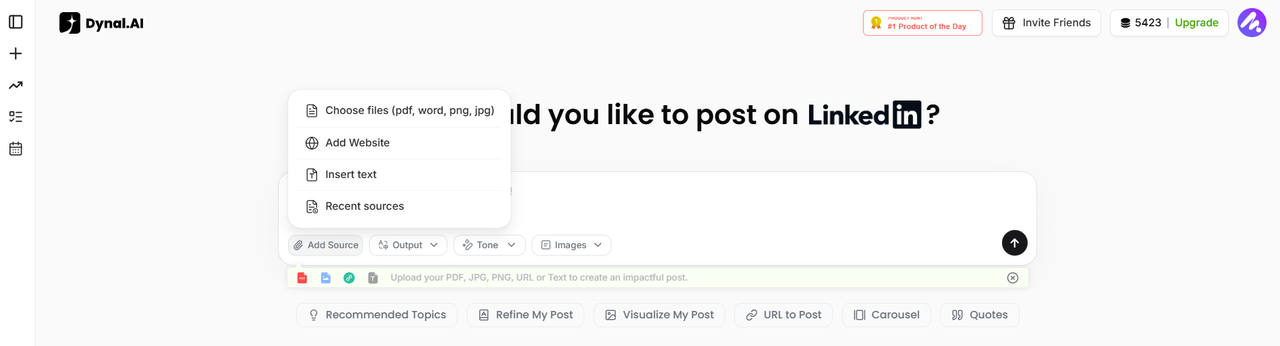
- Choose how to upload your sources:
- Drag and drop a file (PDF, Word, PNG, JPG, etc.).
- Paste a link (for example, a news article, your website, or a LinkedIn post).
- Paste copied text or write your own idea.
- Confirm your source and let Dynal’s AI do the heavy lifting—extracting key points and insights from your upload.
Tip: You can start with marketing reports, industry news, meeting notes, or even simple brainstorming text.
Managing and Selecting Sources
Dynal.AI keeps all your recent and active sources organized, so you can reuse or remix content with ease.
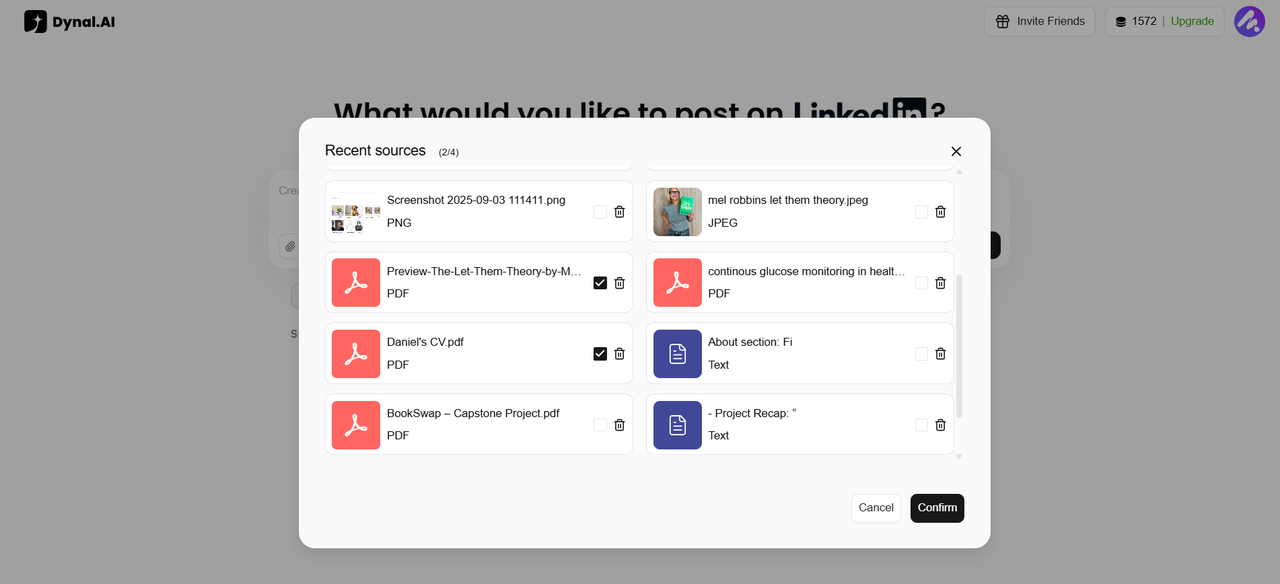
- See all your used and recent sources in one place.
- Easily select or remove sources before generating a new post draft.
- Mix and match multiple sources to create richer, more insightful content. Dynal.AI currently supports up to 4 sources for each LinkedIn post.
Generating Your First Draft: AI Thought Process & Breakdown
Before creating your post, Dynal.AI transparently shows its thinking—breaking down your topic into a logical structure:
- Analyzes your source (link, file, or prompt)
- Identifies key points, audience, and visual themes
- Plans a multi-slide carousel with headlines, supporting points, and visual hooks
You’ll see a step-by-step “Thought Process” summary so you always know what the AI is doing.
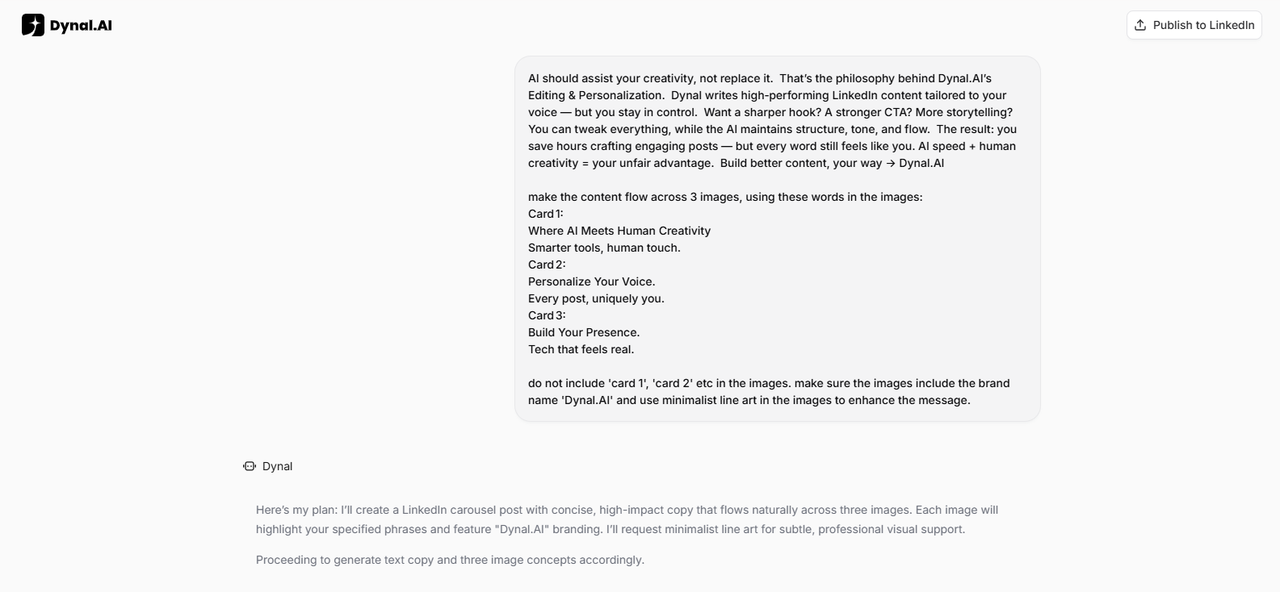
LinkedIn Post Draft & Visual Carousel
Dynal.AI then generates:
- A LinkedIn post draft Includes an engaging intro, highlights, and recommended hashtags.
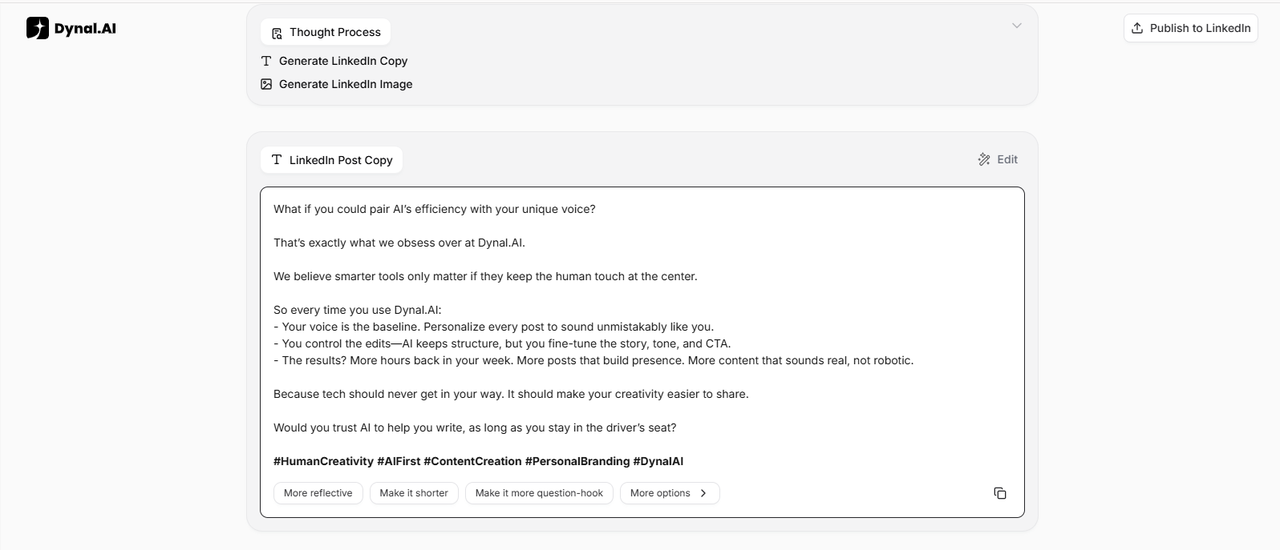
- A set of matching carousel images Each slide visually reinforces a key point in your post.
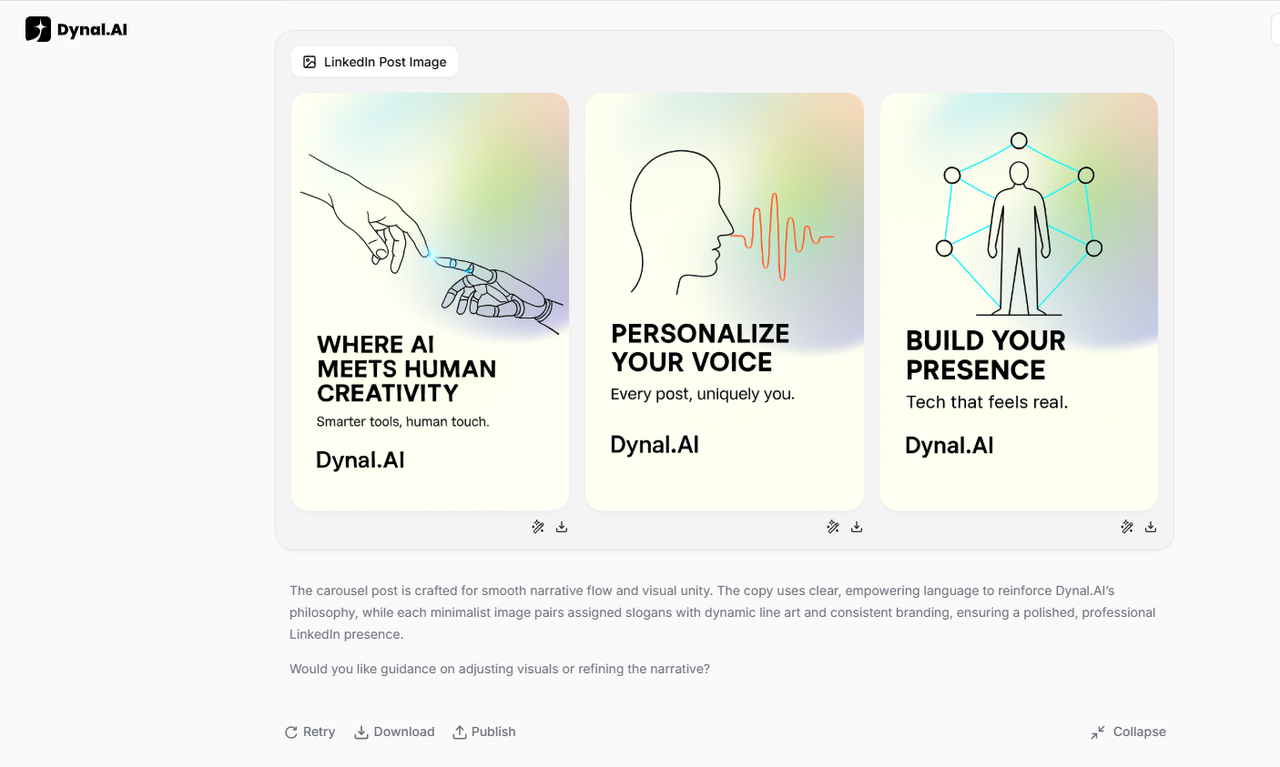
Dynal ends with a short summary explaining the visuals. Feel free to request for any image tweaks or further requests!
Editing & Customizing Your Content
Your first draft is just the beginning. Dynal.AI gives you full creative control to:
Edit post copy:
- Change the tone, wording, or hashtags directly in the text box. Simply click on the line you want to edit and make the necessary changes, then click the 'tick' icon to save your draft.
- Explore options such as 'Make it shorter', 'Make it more question-hook' etc till you get your perfect caption.
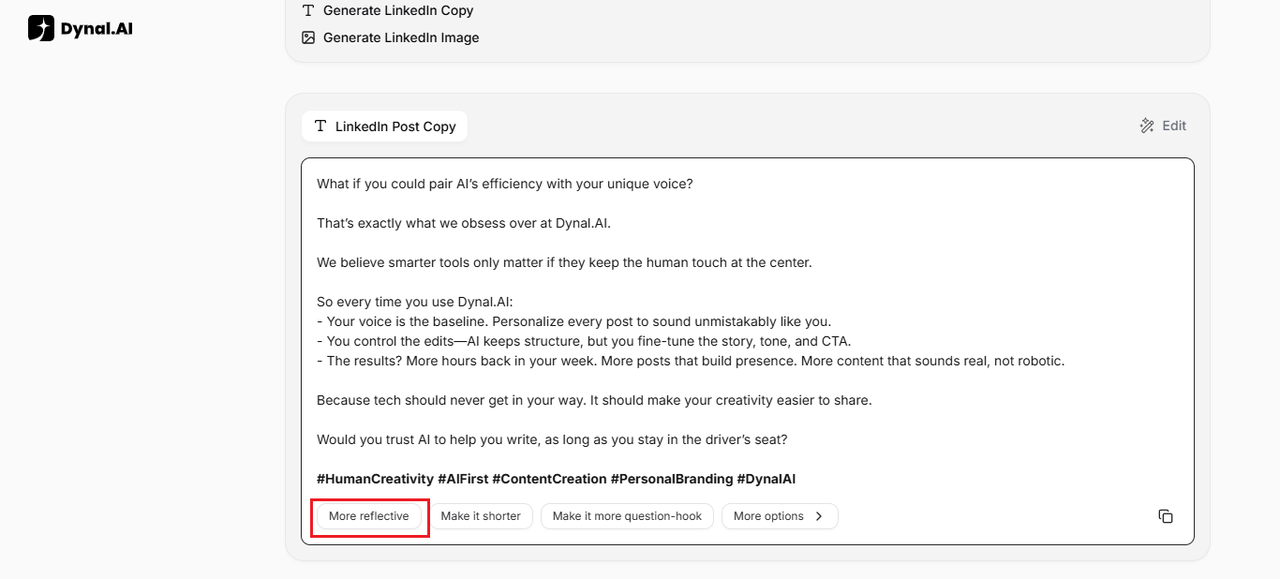
- Click on the arrow '>' on the right for even more customisation options - choose your desired post length, engagement CTA, content structure, language and style to hook your reader in from the very start.
Post Visuals
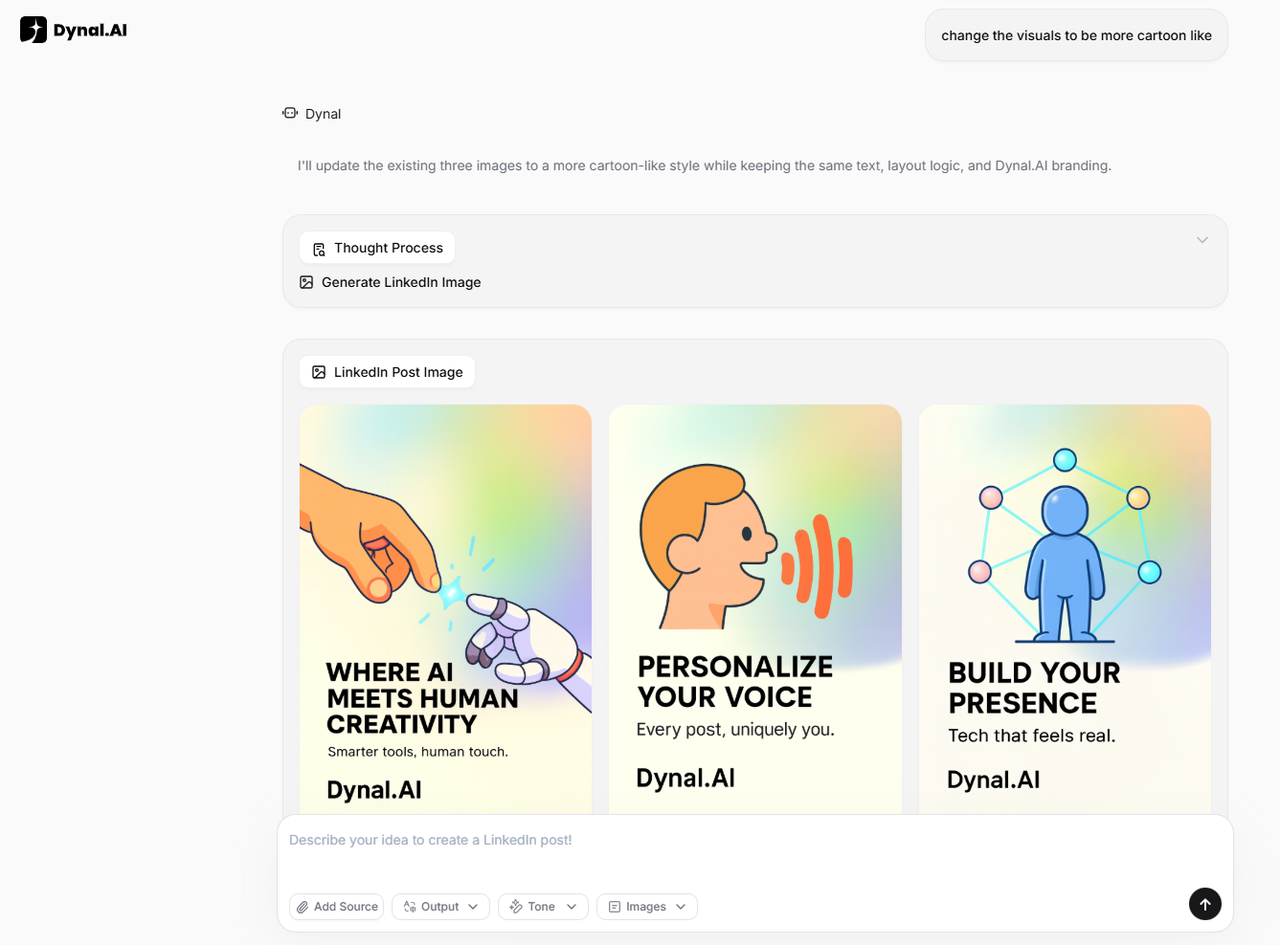
Change the style of the visuals by simply prompting Dynal.AI in the chat! I changed my line art style visuals to a cartoon style:
- Use the 'Magic Edit' function in the visual editor to describe any changes you want to make, click 'Generate' and watch as the AI magically applies them to your image.
Before:
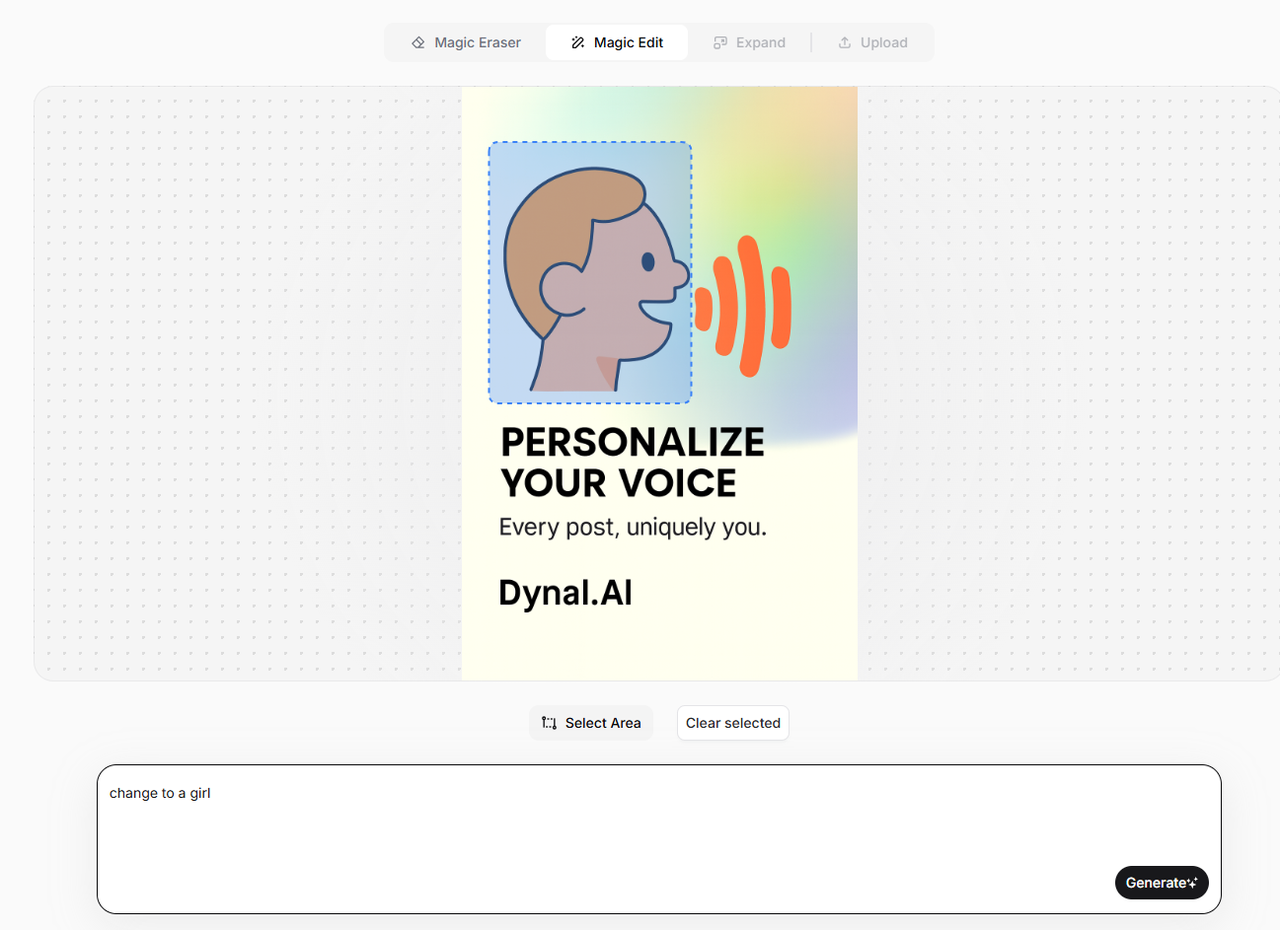
After:
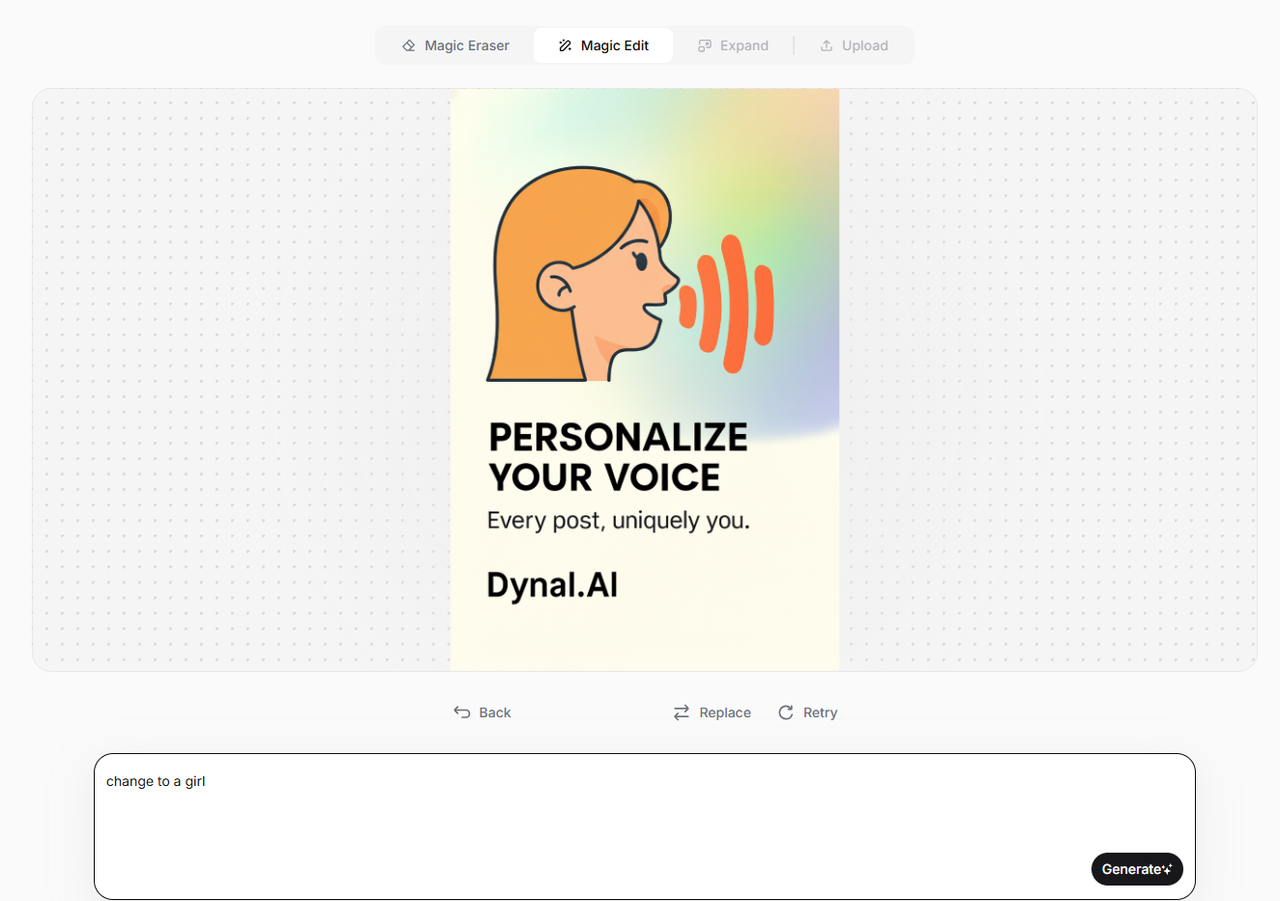
- You can also use the 'Magic Eraser' option to erase any unwanted elements, 'Expand' to adjust the image dimensions and 'Upload' to upload your own pictures!
- Generate new slides, swap images, or edit text overlays instantly by talking to your AI agent.
Pro Tips for Fast, Quality Posts
- Iterate quickly: Don’t worry about getting it perfect on the first try. Dynal.AI makes it easy to generate new drafts or remix old ones.
- Leverage your AI memory: The more you use the platform, the better it understands your style and preferences.
- Mix and match sources: Combine multiple links, files, or your own insights for richer content.
Next Steps
You’ve created and edited your first post—congratulations! In the next article, we’ll show you how to preview your post, use AI-powered optimization tips, and publish directly to LinkedIn for maximum impact.
Stay tuned: Previewing, Optimizing & Publishing Like a Pro →