
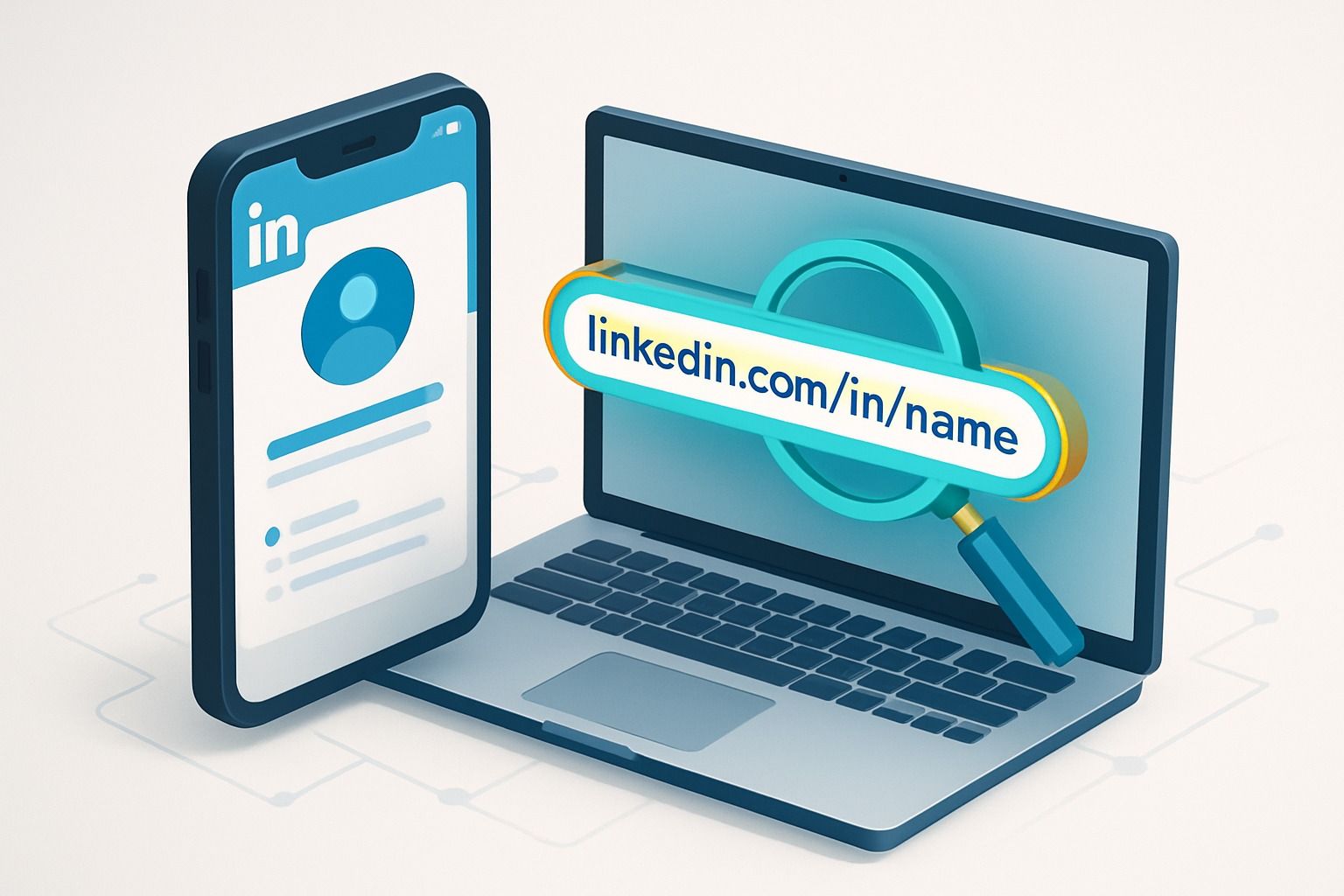
Are you wondering "how to get my LinkedIn URL" or "what is my LinkedIn URL" exactly? Whether you need it for your resume, email signature, or online profiles, this guide covers everything you need to know about finding, customizing, and sharing your LinkedIn profile link across all devices.
What Is My LinkedIn URL and Why Does It Matter?
Your LinkedIn URL is the web address that leads directly to your professional profile. When you first create an account, LinkedIn assigns you a default URL that typically looks like this: https://www.linkedin.com/in/johnsmith-a1b2c3d4e5/
This random combination of your name followed by numbers and letters works, but it's not ideal. Here's why learning how to find and customize your LinkedIn URL matters:
- Makes your profile easier to discover and remember
- Creates a more professional impression on resumes and business cards
- Improves your visibility in search engines
- Shows attention to detail to potential employers
- Strengthens your personal brand consistency
How to Find My LinkedIn URL on Desktop
Finding your LinkedIn URL on your computer takes just a few simple steps:
- Log in to your LinkedIn account
- Click on your profile picture in the top navigation bar
- Select "View Profile" from the dropdown menu
- Look at your browser's address bar - that's your LinkedIn URL
- Alternatively, scroll to the "Contact Info" section of your profile
The URL displayed will follow this format: https://www.linkedin.com/in/your-name-and-numbers/
How to Find LinkedIn URL on Mobile
On the LinkedIn App (iPhone and Android)
If you're asking "how to get LinkedIn URL on mobile," follow these steps:
- Open the LinkedIn app on your device
- Tap your profile picture in the upper left corner
- Select "View Profile"
- Tap the three dots (⋯) in the upper right corner
- Select "Contact info"
- Your LinkedIn URL will be listed under "Profile"
On Mobile Browser
If you're using a mobile browser rather than the app:
- Navigate to LinkedIn.com and log in
- Tap your profile picture
- Select "View Profile"
- Your URL will be in the browser's address bar
- You can also find it under "Contact Info" on your profile
How to Copy LinkedIn URL Quickly
On Desktop
To copy your LinkedIn URL on desktop:
- Navigate to your LinkedIn profile
- Click once in the address bar to highlight the URL
- Right-click and select "Copy" or use Ctrl+C (Windows) or Cmd+C (Mac)
- Paste where needed using Ctrl+V (Windows) or Cmd+V (Mac)
On Mobile App
To copy your LinkedIn URL on the mobile app:
- Go to your profile
- Tap the three dots (⋯)
- Select "Contact info"
- Under your profile URL, tap "Copy"
How to Customize LinkedIn URL for a Professional Look
Having a personalized URL with just your name looks much more professional. Here's how to edit LinkedIn URL:
- Log in to LinkedIn on a desktop browser (customization can't be done on mobile)
- Click your profile picture and select "View Profile"
- On the right side of your profile, click "Edit public profile & URL"
- Under "Edit your custom URL" on the right side, click the pencil icon
- Type your desired URL (typically your name without spaces)
- Click "Save"
Best Practices When You Customize LinkedIn URL
- Use your full name if available (e.g., linkedin.com/in/johnsmith)
- If your name is already taken, try adding your middle initial or profession (e.g., linkedin.com/in/john-smith-marketing)
- Avoid numbers unless they're part of your professional brand
- Don't use special characters or spaces
- Keep it simple, professional, and easy to remember
- Use lowercase letters for consistency
How to Generate My LinkedIn URL for Different Purposes
Your LinkedIn URL can be generated and used in various professional contexts:
For Your Resume
When adding your LinkedIn URL to your resume:
- Find your customized URL using the methods above
- Place it in your resume header or contact section
- Consider using a hyperlink with professional anchor text like "LinkedIn Profile"
- Test the link to ensure it works properly
For Email Signatures
To add your LinkedIn URL to your email signature:
- Copy your LinkedIn URL
- Open your email client's signature settings
- Add text like "Connect with me on LinkedIn" and hyperlink it with your URL
- Alternatively, use a LinkedIn icon linked to your profile
For Business Cards
When printing business cards:
- Use a URL shortener if your LinkedIn URL is lengthy
- Consider using a QR code that links to your profile
- Place it alongside your other contact information
Common Issues When Finding LinkedIn URL
URL Already Taken
If someone already has your preferred URL when trying to customize, try these alternatives:
- Add your middle initial or full middle name
- Include your industry or profession (john-smith-writer)
- Add a credential or certification you hold (john-smith-cpa)
Can't Find Your URL
If you're having trouble locating your URL:
- Make sure you're logged in to your account
- Try accessing LinkedIn from a desktop browser
- Check if your profile is set to public visibility
- Update your LinkedIn app if you're on mobile
URL Not Working When Shared
If others can't access your profile through your shared URL:
- Verify that your profile is set to public
- Check for typos in the URL you're sharing
- Ensure you're sharing the complete URL including "https://www.linkedin.com/in/"
Elevate Your LinkedIn Presence with Dynal.AI
Once you've mastered how to find and customize your LinkedIn URL, the next step is creating engaging content that attracts attention to your profile. This is where Dynal.AI transforms your LinkedIn experience.As your personal LinkedIn agent, Dynal.AI helps professionals build their brand and amplify their influence through AI-powered content creation. Instead of spending hours crafting the perfect post, Dynal.AI streamlines the process from idea to publication.
How Dynal.AI Enhances Your LinkedIn Strategy
With Dynal.AI, you can:
- Generate high-quality LinkedIn posts from any source material (articles, PDFs, images)
- Create visually appealing images that complement your written content
- Receive strategic guidance on when and what to post for maximum engagement
- Get personalized topic recommendations based on trending professional conversations
- Edit and refine your content with AI-powered suggestions
- Preview your posts exactly as they'll appear on LinkedIn
By combining your customized LinkedIn URL with compelling content created through Dynal.AI, you'll not only look professional but also consistently share valuable insights that position you as a thought leader in your field.
Expert Tips: Getting the Most from Your LinkedIn URL
- Consistency matters - Use the same version of your name across all professional platforms
- Update links regularly - If you customize your URL, update it everywhere you've shared it
- Track engagement - Consider using a URL tracking tool to see how often people click your LinkedIn link
- Protect your profile - Review privacy settings to control what visitors see when they use your URL
- Leverage in networking - Add your LinkedIn URL to digital business cards and networking apps
Final Thoughts: The Power of Your LinkedIn URL
Your LinkedIn URL is more than just a web address—it's a gateway to your professional identity online. By learning how to find, customize, edit, and share your LinkedIn URL, you're taking an important step toward building your personal brand and expanding your professional network.Remember that your LinkedIn profile is only as effective as the content you share and the connections you make. Consider how tools like Dynal.AI can help you create engaging, professional content that showcases your expertise and builds your influence on the platform.With your optimized LinkedIn URL and compelling content strategy, you'll be well on your way to standing out in your professional community and attracting new opportunities.Ready to take your LinkedIn presence to the next level? Visit Dynal.AI to discover how our AI-powered platform can help you create smarter content and influence faster.
FAQ: LinkedIn URL Questions Answered
How do I find my LinkedIn URL if I forgot it?
Simply log into LinkedIn and visit your profile. Your URL appears in the address bar of your browser or under your profile's "Contact info" section.
Can I change my LinkedIn URL more than once?
Yes, you can change your LinkedIn URL multiple times. However, previous versions won't redirect to your new URL, so update it everywhere after changing.
How do I share my LinkedIn URL with someone?
Copy your URL using the methods described above and paste it into an email, message, or document. You can also use LinkedIn's "Share profile" feature in the mobile app.
Does changing my LinkedIn URL affect my connections?
No, changing your URL doesn't affect your existing connections or profile content—it only changes the web address used to access your profile.
Is my LinkedIn URL the same as my username?
Not exactly. Your LinkedIn username is used for logging in, while your LinkedIn URL is the web address for your public profile. They may contain similar information but serve different purposes.