

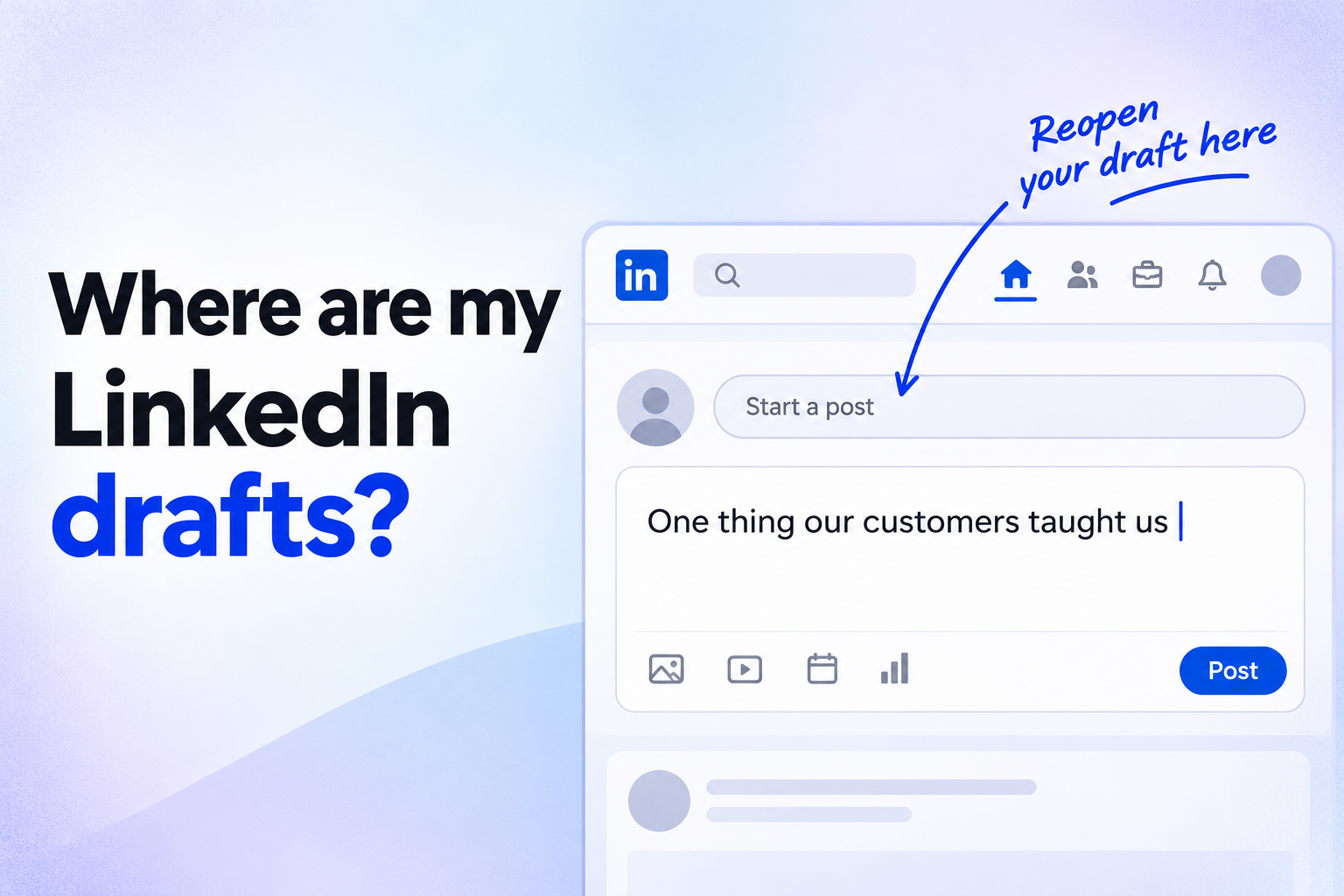
Where did that half-written LinkedIn post go? On desktop, click Start a post at the top of your feed. On mobile, tap the plus sign in the navigation bar. If you saved an ordinary post as a draft before leaving, your text will usually reappear in the composer.
Find a post draft on desktop
- Sign in with the account you used to write the post and open your LinkedIn feed.
- Click Start a post. If your opening lines are already there, pick up where you left off.
- To keep it for later, close the composer and choose Save as draft. Wait for confirmation before leaving. Click Post only when you’re ready to publish.
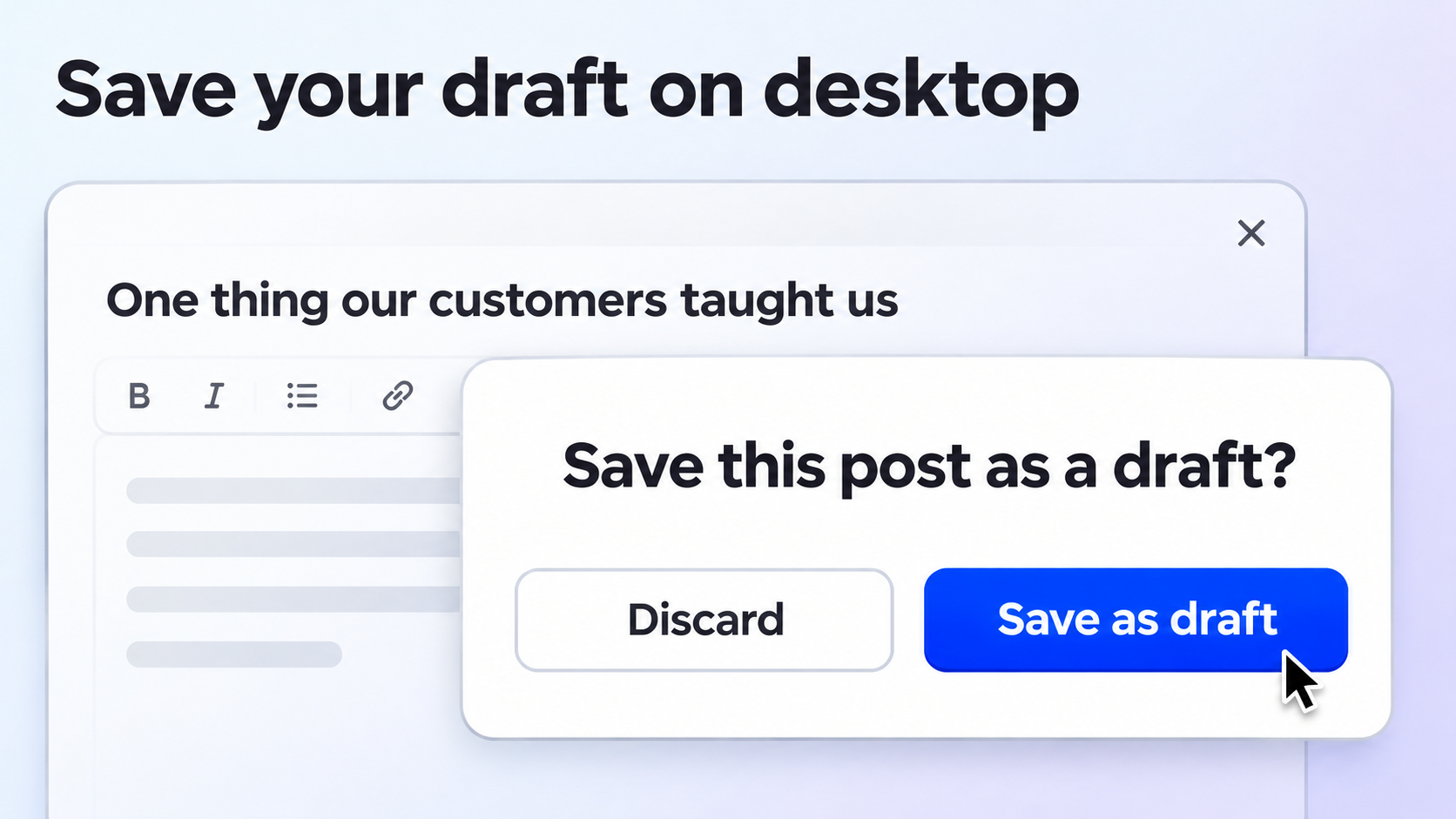
Switching computers after work? Save the draft on your work computer and wait for confirmation. At home, sign in to the same account and open Start a post to continue.
Find and edit a draft on your phone
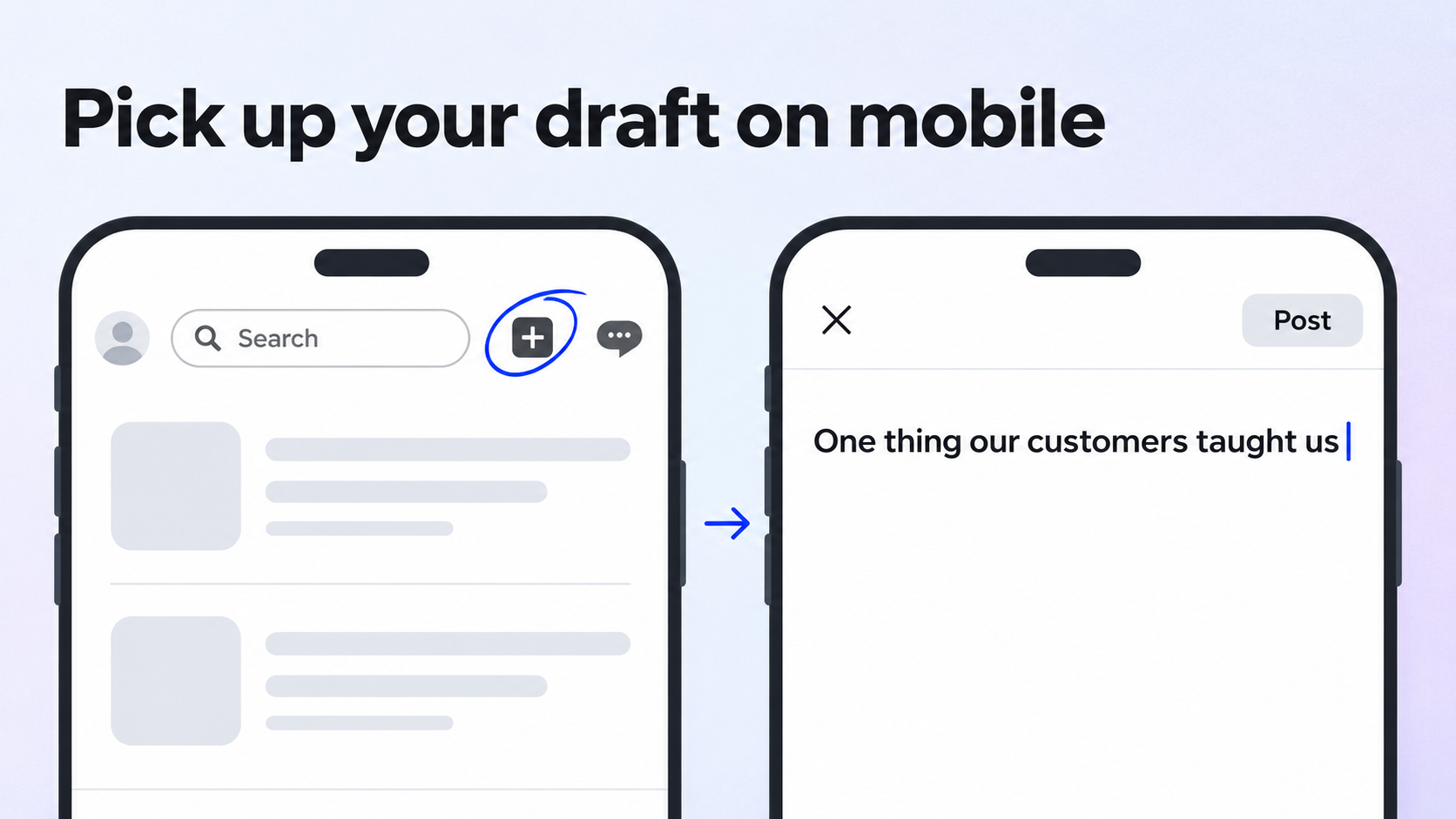
- Tap the + at the top of the screen to open the post editor.
- To keep the draft, close the editor and tap Save draft or Save. Choosing Delete draft or Discard deletes the draft.
- Return to the feed and tap the plus sign again. If the last sentence you edited is there, your changes were saved.
Where are LinkedIn article drafts?
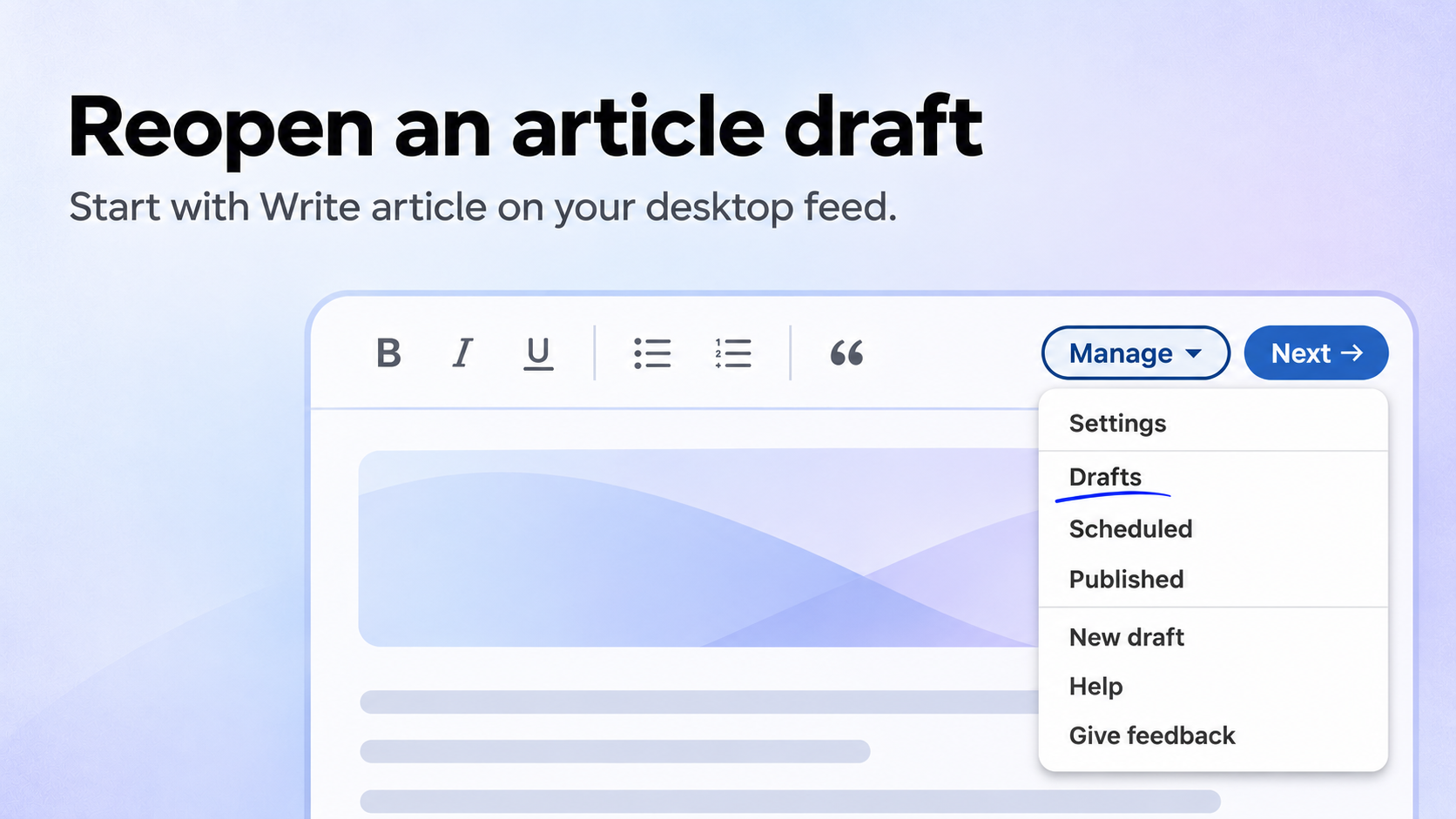
Sign in using a desktop browser. The mobile app does not have this article draft manager.
- Click Home. Under the Start a post box at the top of the feed, choose Write article.
- The article editor may open on a blank page. You don’t need to type anything. Open Manage at the top right and choose Drafts.
- Select the title of the article you want to continue.
If you’re a super admin or content admin of a LinkedIn Page, open Write article on desktop. Check that the author at the top left is the profile or Page you wrote under, then choose Manage → Drafts. If you see Publish as first, select the author and click Next.
If you started in Start a post, follow the ordinary post instructions above, no matter how much you wrote.
Still can’t find your post? Check these three places
- Already picked a publishing time? Open Start a post, click the clock and open the list of scheduled posts. Look for View all scheduled posts. An empty list means no posts are scheduled.
- Wrote it as a company Page? Use the account that created it to enter the Page’s admin view. Open Page posts on the left and click Start a post. Super admins and content admins can retrieve their own saved post drafts here. Other admins of the same Page can’t see them.
- Closed the browser or clicked Discard? Reopen the composer first. If you confirmed Discard, LinkedIn’s draft guide provides no recovery option. Check the meeting notes, email or memo you originally copied from.
How to prepare several posts in one week
Say you want to answer a customer question on Monday and share a project retrospective on Thursday. For the first post, note the customer’s actual words. For the second, record a trade-off your team made and what happened next. Those two notes give you a starting point for two separate drafts.
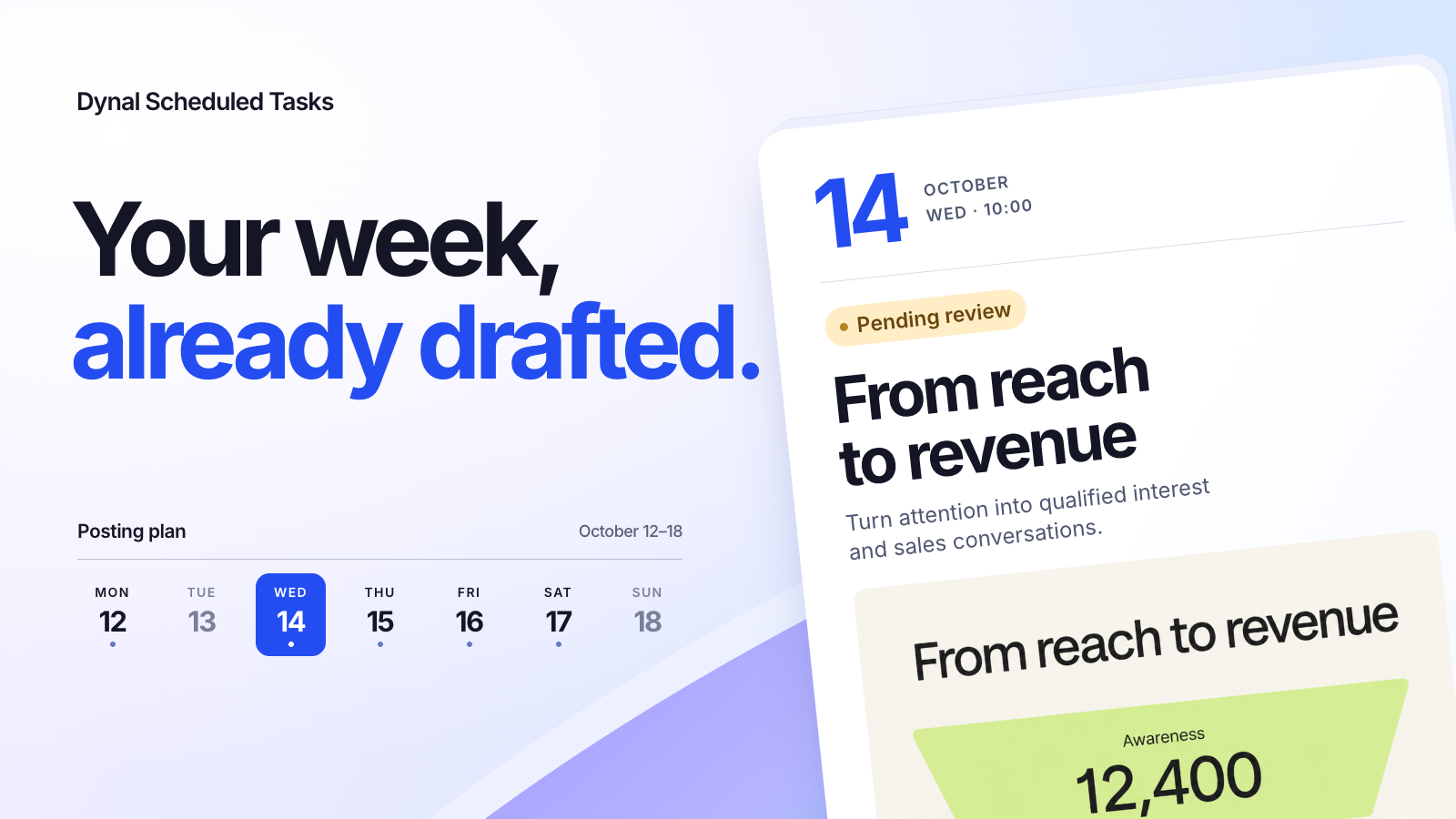
If you follow this routine every week, use Dynal’s Scheduled Tasks to prepare drafts for review ahead of time. Check the customer’s wording and the project details yourself before deciding when to publish.
Frequently asked questions about LinkedIn drafts
Can anyone see my saved draft?
Saving a draft keeps the text private. An ordinary post goes out to your selected audience only when you click Post or its confirmed publishing time arrives.
Can I finish a work-computer draft at home?
Yes, on supported devices. Wait for the save confirmation at work, then open the post composer at home with the same LinkedIn account. If the text is missing, check the device you wrote it on.
Why does Scheduled still show zero?
The count includes only posts with a confirmed publishing time. You can have a saved draft and zero scheduled posts. Open the composer from your feed to keep writing.
Can I recover a draft after choosing Discard?
If you only closed the browser, reopen the composer and check. If you confirmed Discard, LinkedIn’s guide lists no recovery option. Look for a copy in the notes or email you used to write it.