

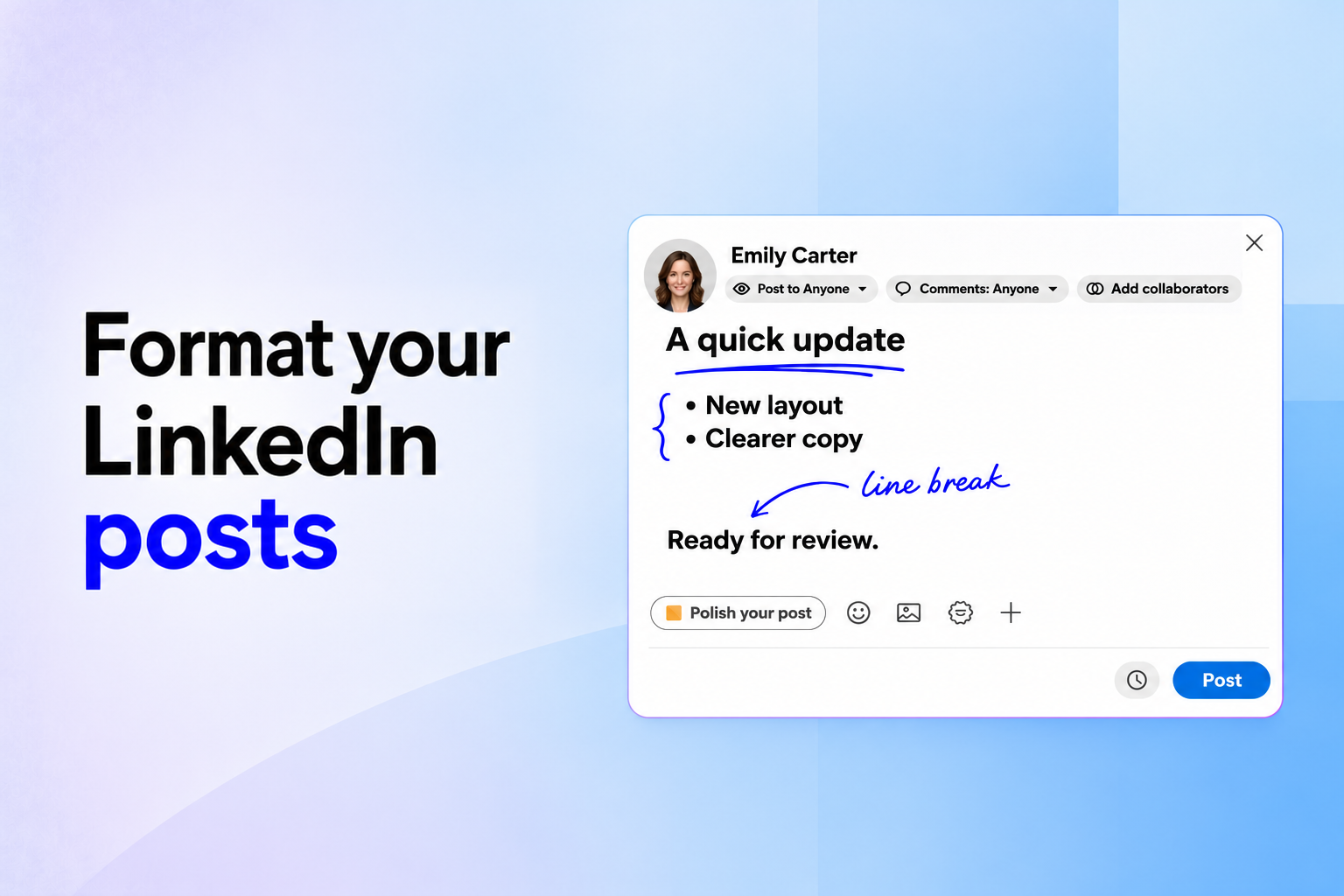
To draw attention to a sentence, try giving it a paragraph of its own. For bold lettering, enter your text in a formatting tool, choose a style, then copy the result into a post, comment or profile.
For example, a tool such as Dynal can turn Next step into 𝗡𝗲𝘅𝘁 𝘀𝘁𝗲𝗽 using special characters. How they display or sound can vary by language, device and screen reader. Here’s how to use emphasis, bullets and spacing.
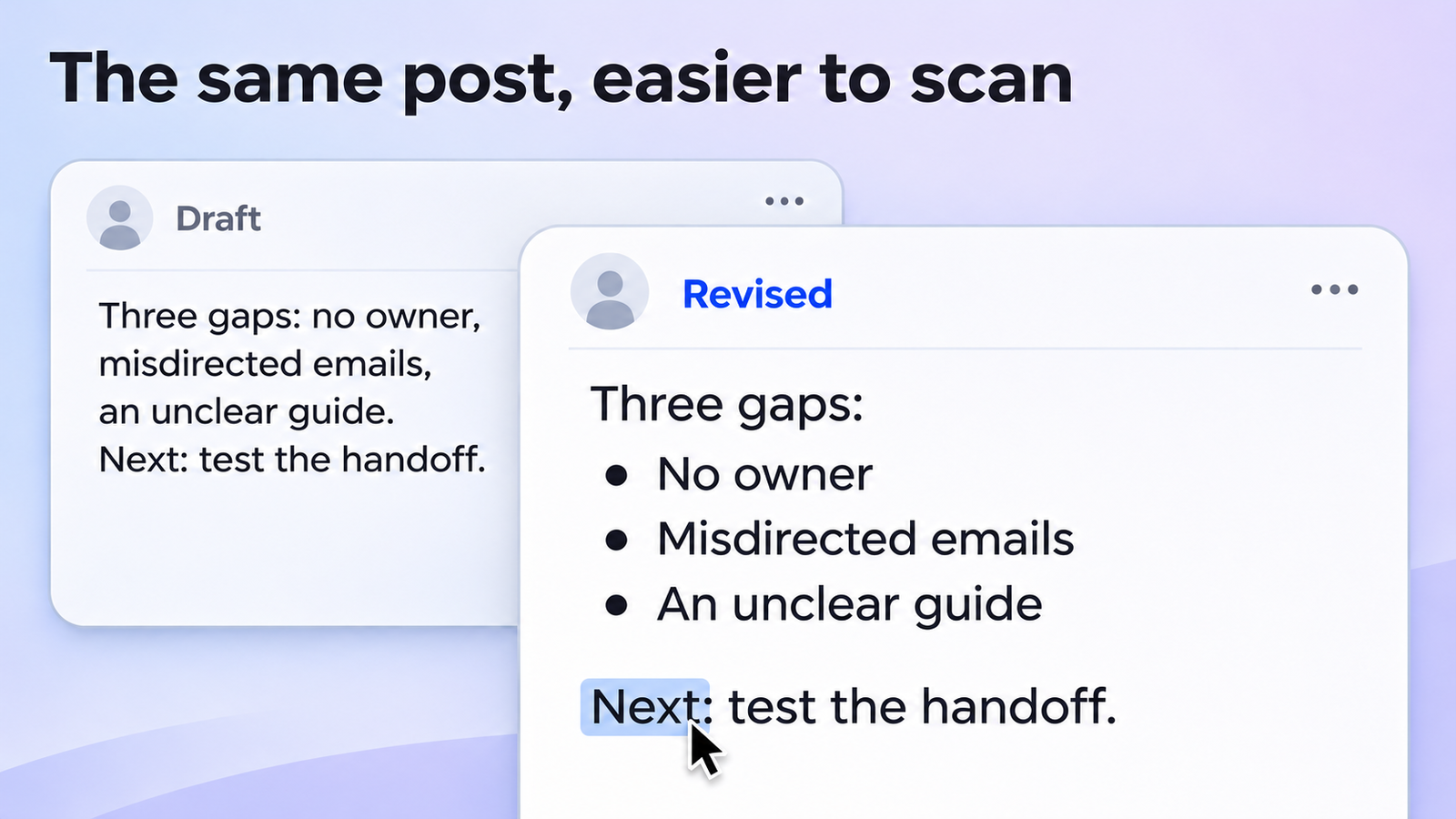
Before and after: the same post in two layouts
Here’s a fictional client meeting recap, first as one paragraph:
The client completed setup but ran into trouble the next day. We found three things: nobody knew who owned the account, the welcome email went to the buyer, and the setup guide assumed the buyer was the user. Next week we’ll test the handoff with the people who actually use the product.
Keep the wording, add paragraph breaks and give each finding a bullet:
The client completed setup but ran into trouble the next day.
We found three things:
• Nobody knew who owned the account.
• The welcome email went to the buyer.
• The setup guide assumed the buyer was the user.
Next week we’ll test the handoff with the people who actually use the product.
Readers can now see the problem, scan the three findings and pick out the next step.
How to add line breaks and paragraphs on LinkedIn
Open Start a post from your feed and type or paste your text. Press Enter or Return for a new line; press it twice to leave a blank line. Keep related sentences together. For a recap, introduce the client’s problem, list what you learned, then give the next action its own paragraph.
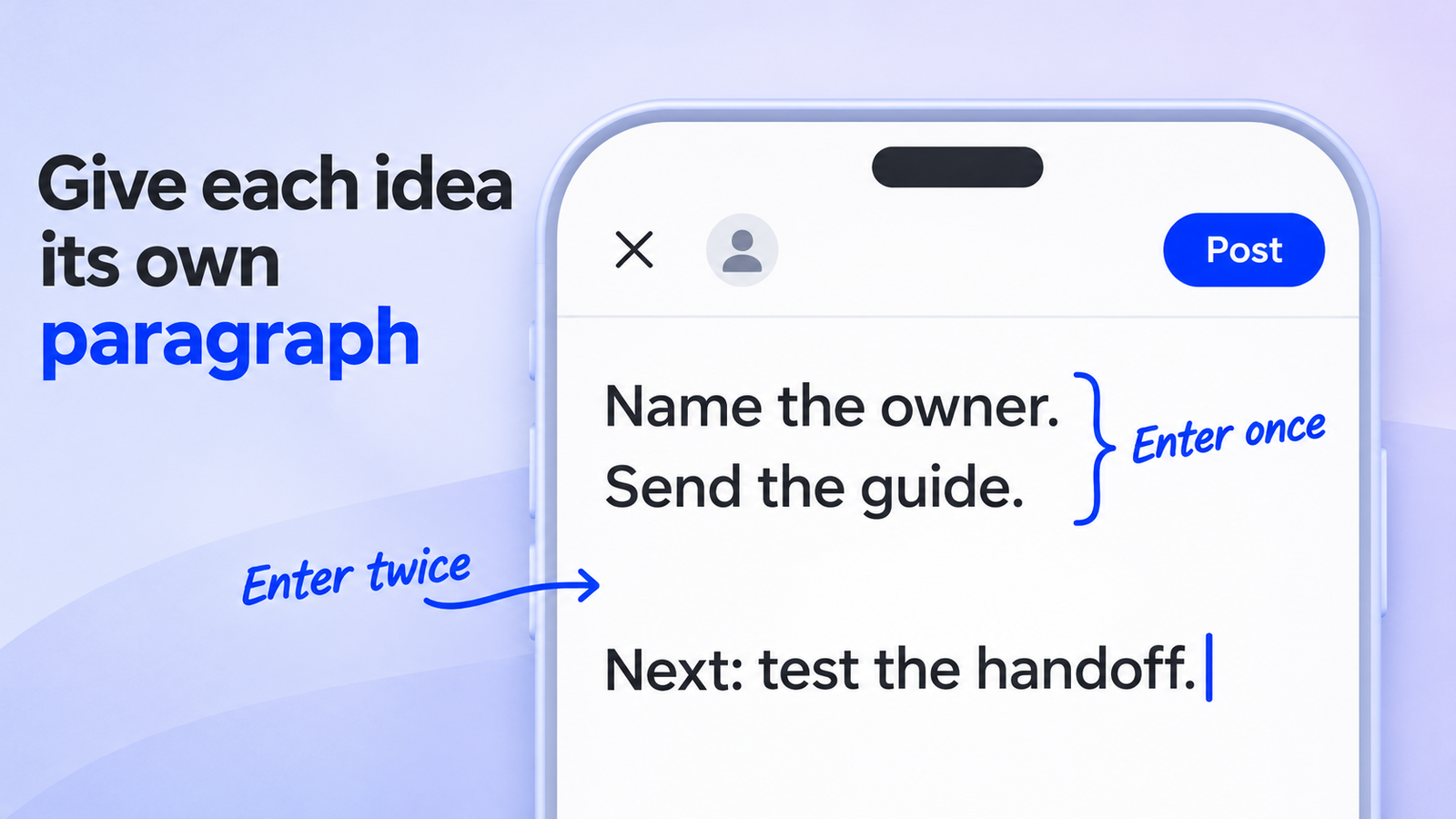
Break paragraphs where the idea changes. You don’t need to press Enter at the edge of your desktop screen. The text wraps to fit the reader’s device.
How to add bullet points to a LinkedIn post
Copy the following list into the post composer and replace each item with your own text. Keep one item per line:
• [First item]
• [Second item]
• [Third item]
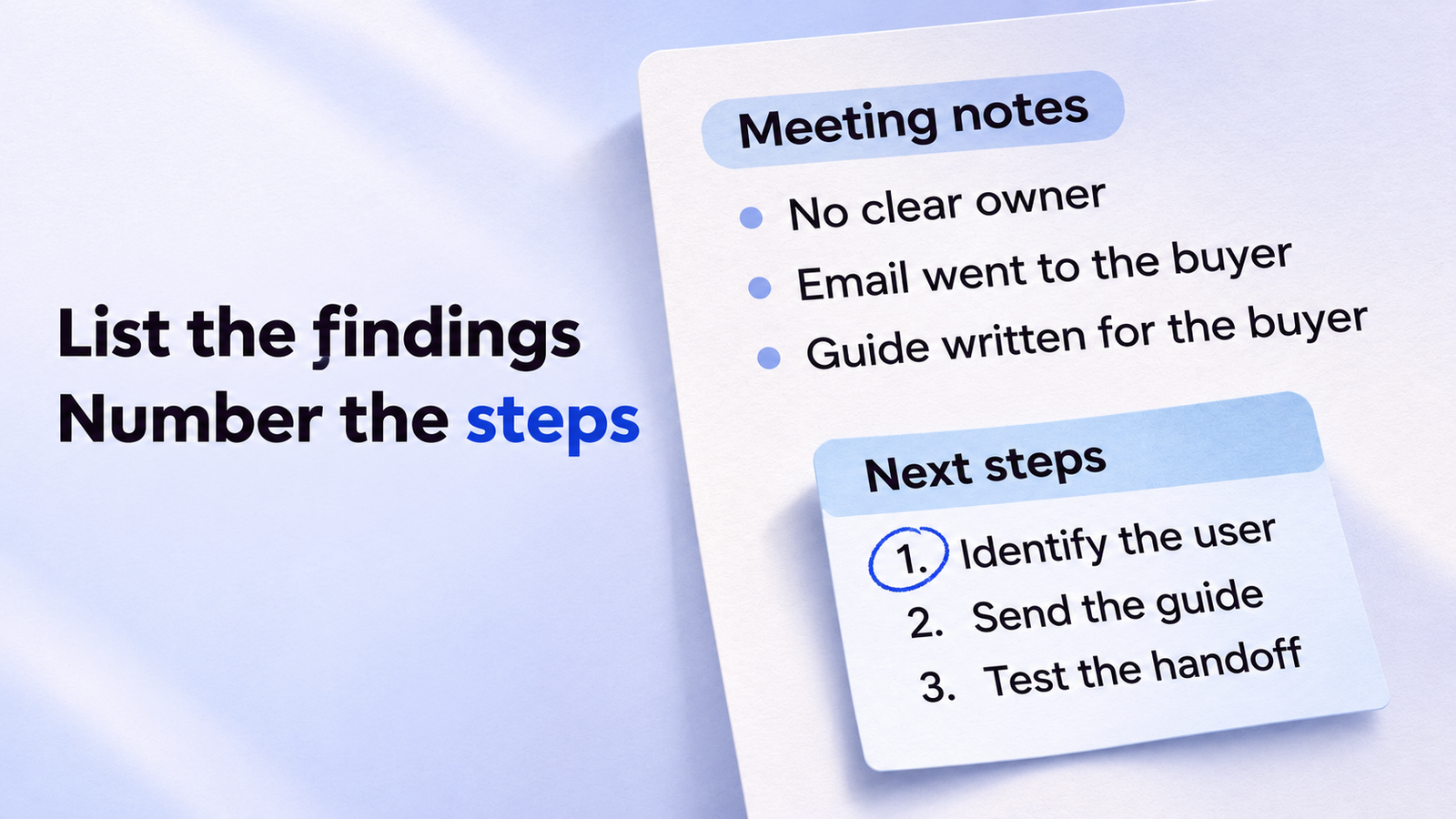
Use bullets for parallel findings. Number steps when their order matters:
1. Identify who will use the product.
2. Send the setup guide to that person.
3. Invite them to complete their first task.
The bullets and numbers are plain text, so you can type or paste them. Check the numbering after you add or remove steps.
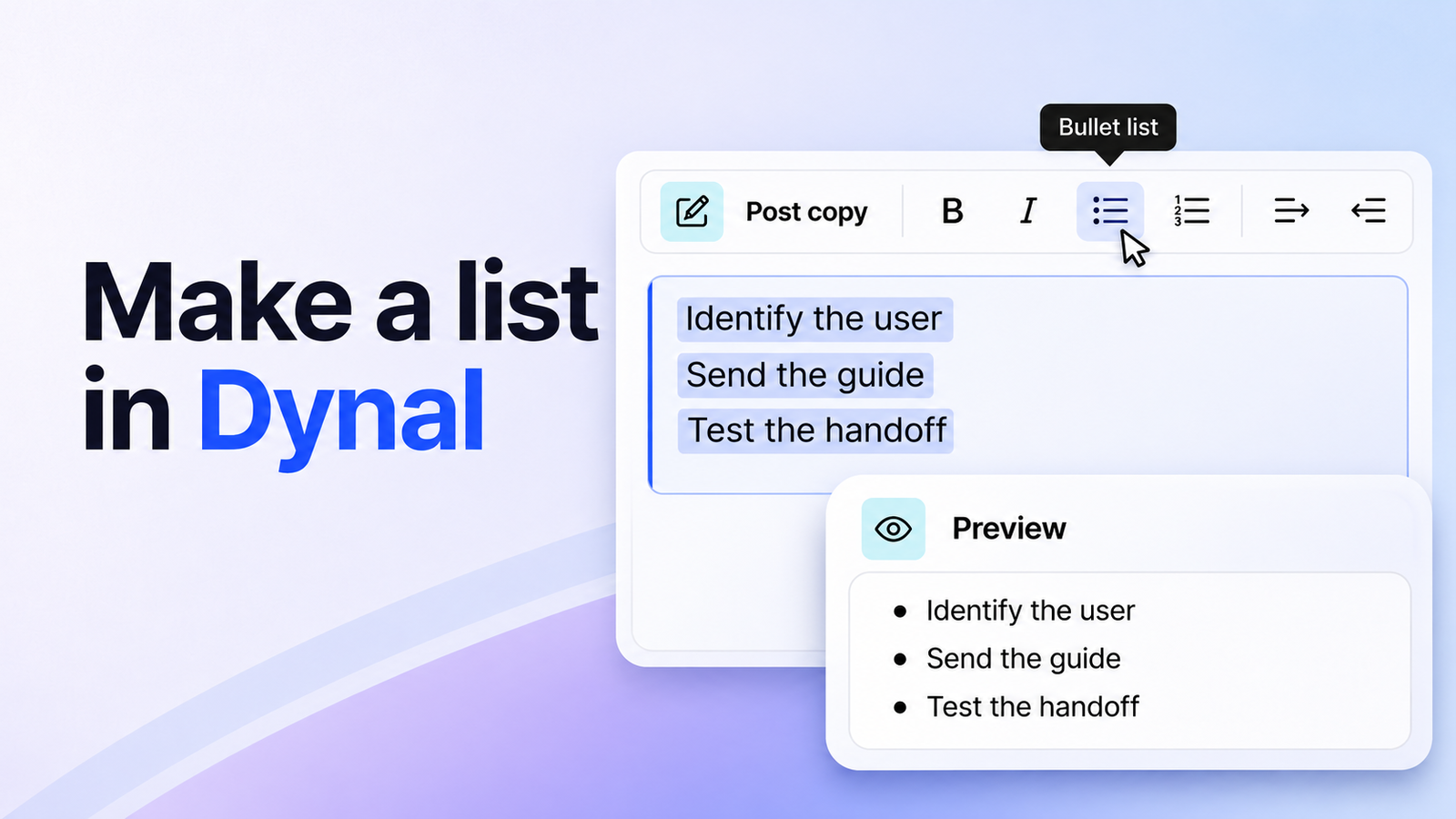
You can also format lists in the Dynal editor. Open a draft, paste your text into the post editor and choose Bullet list or Numbered list from the toolbar. Use Preview to check it. Copy the result to LinkedIn or connect your LinkedIn account and publish from Dynal.
How to use bold text in posts, comments and profiles
LinkedIn’s ordinary post composer has no native bold button. Use a text style converter or a post editor that supports formatting, then paste the result into LinkedIn.
Reserve bold for a short phrase, such as a conclusion or a detail readers might miss.
Use a text converter for a post
- Open a text style converter or the Dynal editor in a desktop or mobile browser. Type or paste the phrase you want to emphasize.
- Choose a bold style and copy the result. The available options depend on the tool.
- Return to LinkedIn, open Start a post and paste the converted text where you want it.
- Before publishing, check names, numbers and characters from other scripts carefully.
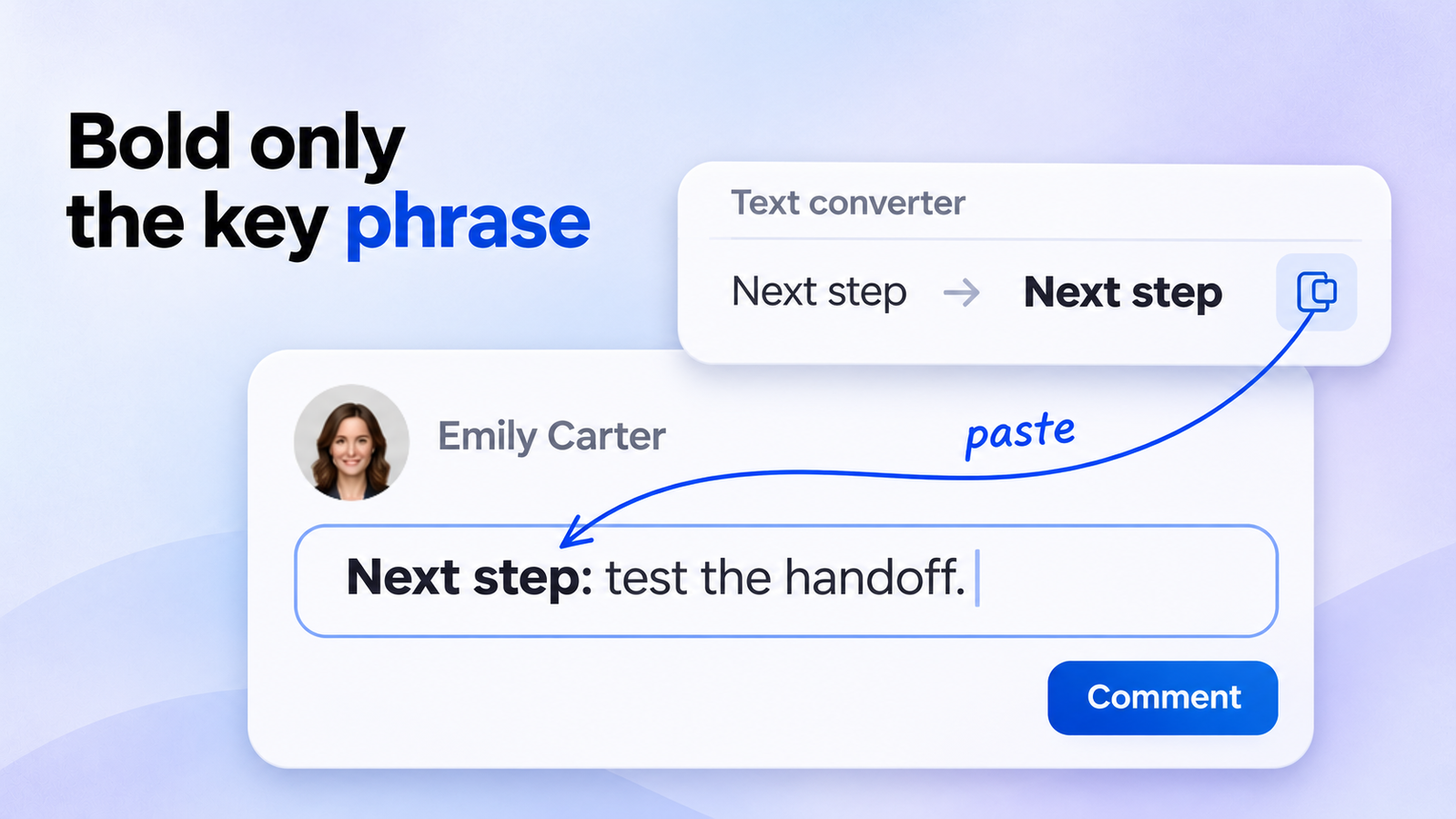
Plain text such as Next step can appear as 𝗡𝗲𝘅𝘁 𝘀𝘁𝗲𝗽. The converter swaps letters for different characters. Check names and accented letters after pasting. If any look wrong, keep the original spelling and give the phrase a line of its own.
If you’re already editing a post in Dynal, select the phrase, click Bold in the toolbar, then check the result in Preview.
Use bold text in a comment
On desktop, enter the phrase in a text converter, choose a bold style and copy it. Open the post, click Comment and paste it into the comment box. Check the text before posting. Switch back to plain lettering if any characters look wrong.
Can I use bold letters on my profile?
The About editor has no native bold button. A converter can replace some Latin letters with bold-looking Unicode characters, which you can paste into your About section.
Give the post one last read on a phone
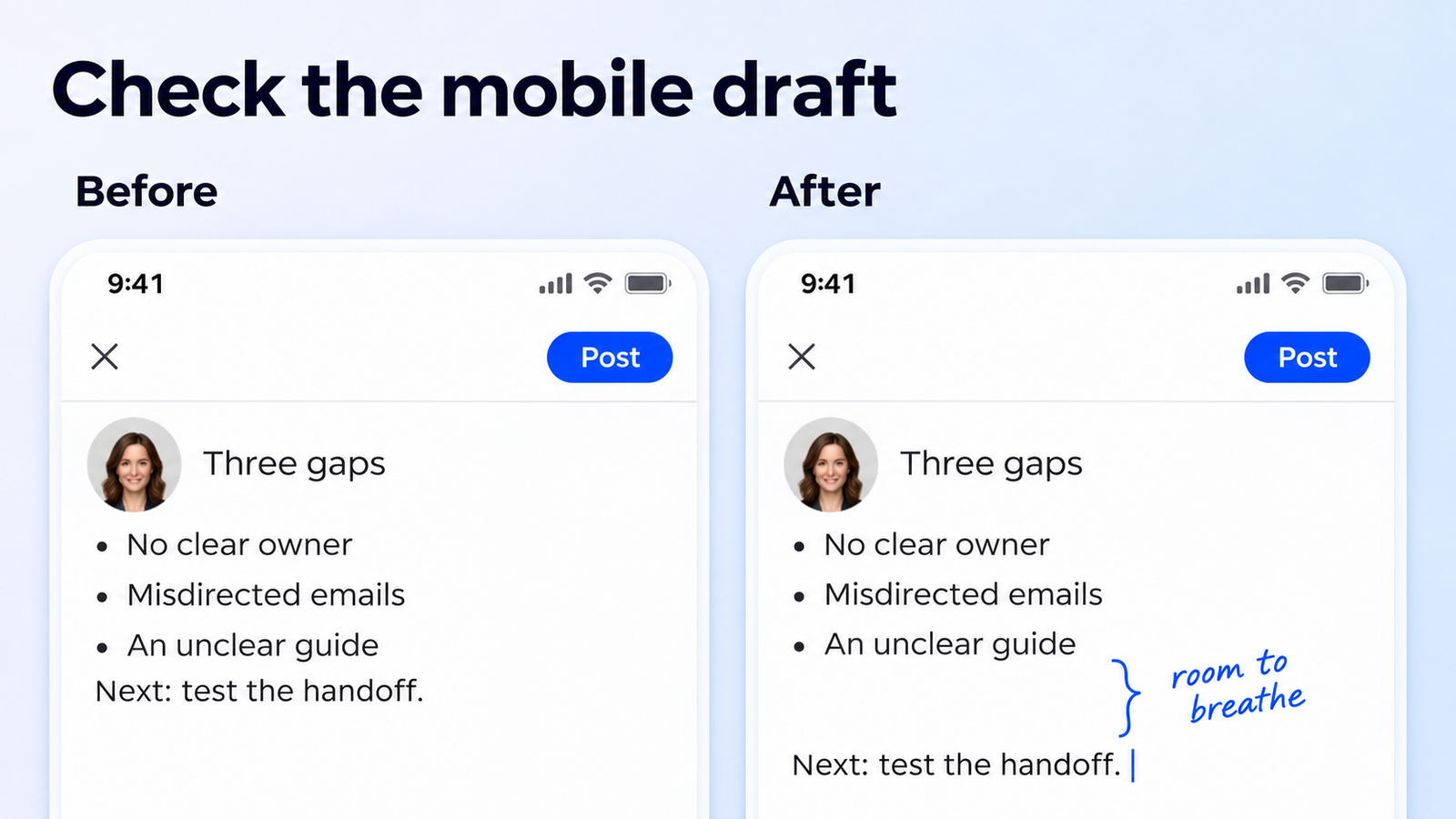
Start from the first line in the mobile composer. Is the problem clear on the first screen? Do the three list items still stand apart after the text wraps? Is the final action separate from the last bullet? If a line looks unusually short, check for a manual break carried over from the draft. Read it through before you publish.
Frequently asked questions
Why did bold disappear when I pasted from Word?
Pasting can work differently across accounts, devices and interface versions. Check the composer. If formatting doesn’t carry over, use plain-text paragraphs or try a style converter.
How many lines appear before “see more”?
LinkedIn collapses longer posts. The cutoff depends on the device and screen width. Preview on a phone and computer to check that your most important point comes before the fold.