

You’ve delivered a big project or wrapped up an event you spent weeks planning. There’s a post in there somewhere. Which part would someone else want to read? Pick the template that fits what you want to share, then replace the prompts in brackets with your own details.
1. Answer a question readers keep asking
“Does every LinkedIn post need an image?”
You could answer in two words: “Not always.” To turn the answer into a post someone can use, go one step further.
If I want to show what changed on a page, two screenshots side by side will do the job. If I’m explaining why we removed a feature, the most interesting thing might be the customer comment that changed our minds.
Here’s how I decide: what would readers miss if I took the image out?
That last question gives readers something to try next time. Look through recent client emails or comments for a question you’ve answered more than once. What example finally made it click? That detail is often the heart of your post.
Try this template
“[The question clients or colleagues keep asking]?”
[Answer in the words you’d use in conversation.]
Take [a familiar task or situation]. [Give one detail that explains your answer.]
Before you start, ask yourself: “[A question that helps the reader decide]?”
When to add a paragraph
If readers need a concrete action, change the last line to “Next time [situation], try [one thing they can do right away].”
Does the answer change under different conditions? Add “If [another common situation], I’d suggest [alternative] because [reason].” If the example already makes the point, end there.
2. Tell the story behind a project
Start with what you delivered. Then imagine a colleague asking, “Which part of that project is worth hearing about?” Where would you start?
Compare the first proposal with the final delivery. Which change do you still remember making, and why? Look at what the first person to use it said. That’s often where you’ll find the story missing from the announcement.
Try this template
[When], we [describe what you delivered in one sentence].
We took this on because [who kept running into what problem, and when]. My part was to [something you actually did].
The first time it was used, [describe who did what with it, or the feedback they gave].
To sort your notes, use STAR: situation, task, action and result. If all went to plan, the first time someone used the result makes a good ending. If you changed course, add “After hearing [whose feedback], I switched from [original approach] to [what you actually did].”
When to add a paragraph
If two approaches both made sense, peers may be most interested in why you picked one. Before the result, add:
We also considered [alternative]. It would have [benefit], but [person or group] would have had to [actual cost or extra work].
Still working on it? End with progress you can confirm: who tried the first version, or which comment prompted the next change.
3. Give readers a reason to share your view
“When I’m deciding what to write on LinkedIn next week, I start in the comments.” That’s your position. The next sentence earns the reader’s attention: what did someone ask that made you want to keep writing about it? Quote the follow-up question itself.
Think of a discussion where people disagreed. Which comment, number or piece of work shaped your view? Pick the one that makes your case most clearly.
Try this template
In [a situation you know well], I’ve come to think [your conclusion in one sentence].
[Describe something you saw firsthand, quote a real comment or compare two figures from the same data.]
This matters to me because [who it affects and how].
When to add a paragraph
For an observation, what you saw and why it matters may be enough. For a recurring decision, try “Whenever I choose between [options], I first look at [specific detail].” To help readers make the call, add “Next time [situation], ask yourself: ‘[question]?’”
If you used to think differently, introduce the evidence with “I used to think [earlier belief].” If your observation comes from a particular group or project, say so alongside the evidence. You can end on an open question:
Most of my experience here comes from [people or projects]. I’d be interested to hear how people who’ve worked in [different circumstances] see it.
4. Recommend an article, report or podcast
When you share a long report, the most useful thing you can say might be “Go straight to page 12.” For a podcast, note the minute you wanted to rewind. One moment that made you pause is enough for a recommendation.
Keep the original link and the passage, screenshot or timestamp you marked. Give the author’s finding one sentence and your reason for recommending it another.
Try this template
If you’ve been wondering [reader’s question], I recommend [article, report or episode title].
My note is on [page, chart, chapter or timestamp]. There, [author or guest] explains [one finding, example or method in your own words].
What helped me was [the detail that answered your question].
[Link to the original]
When to add a paragraph
For a survey, say what it helped you understand and link to it. If you want to try a method, add “Next time [work situation], I’ll try [what you learned]” before the link. If you’ve already tried it, tell readers what happened:
I used [method or advice] on [actual task]. [Describe an observable result or a step you had to adapt.]
If you quote a statistic, say who was counted and when. Readers should be able to find the same figure in the source.
5. Show exactly what changed
Maybe you rewrote an introduction, moved a sign-up button or simplified a handoff. Put the old and new wording side by side so readers can see the difference. For a process, start from the same task and show how the steps changed.
Try this template
We just changed [one line of copy, one page or one step].
Before: [old wording or steps].
After: [new wording or steps from the same starting point].
We changed it because [who got stuck and where]. We want to make it easier for [person affected] to [what they came to do].
Make the two lines comparable. If the first describes what the user does, write the second from the user’s perspective too. Crop both screenshots to the same area so the change is easy to spot on a phone.
When to add a paragraph
If you just made the change, the reason is enough. If people have used it, quote feedback about that change. If you have comparable data, finish with the difference you measured. Choose whichever you actually have.
If you have feedback
After the change, [type of user] told us during [specific step] that [feedback you can share publicly].
If you have before-and-after data
We measured [metric and population] the same way both times. In [earlier period] it was [old value]. In [later period] it was [new value].
6. Invite people to an event, share a takeaway or launch a feature
Someone reading an invitation wants to know, “Is this worth an hour of my time?” Someone waiting for a feature wants to know, “Which step can I skip now, and where do I try it?” Picture the person you most want to reach and answer them in the opening line.
Event invitation template
If you’re working on [specific problem], join us for [event].
Together we’ll [discuss, demonstrate or practise something specific]. You’ll leave with [a resource, method or piece of work you can use].
[Date, start time and time zone]. Duration: [length].
[Venue or joining instructions]. Register here: [link].
If you’re posting after the event
Choose a question you’re still thinking about or a method you plan to try. A colleague who missed the event should get something out of your post too.
What stayed with me after [event] was [discussion, demo or question].
[One detail that made you stop and listen.] It connects to [something you’re working on]. Next, I want to try [how you’ll use it].
New feature announcement template
[People who already have access] can now [task the update makes possible].
Open [where to find it] and [first action]. You’ll see [result].
Try it here: [feature or instructions link].
When to add a paragraph
Add only details that affect the reader’s next step. Before the registration link, say “Bring [material]; we’ll use it to [purpose].” For a phased launch, say “For now, [eligible accounts] have access. Check yours in [location].” If you don’t have a date for wider access, stick to who can use it today.
What should you write after you’ve picked a template?
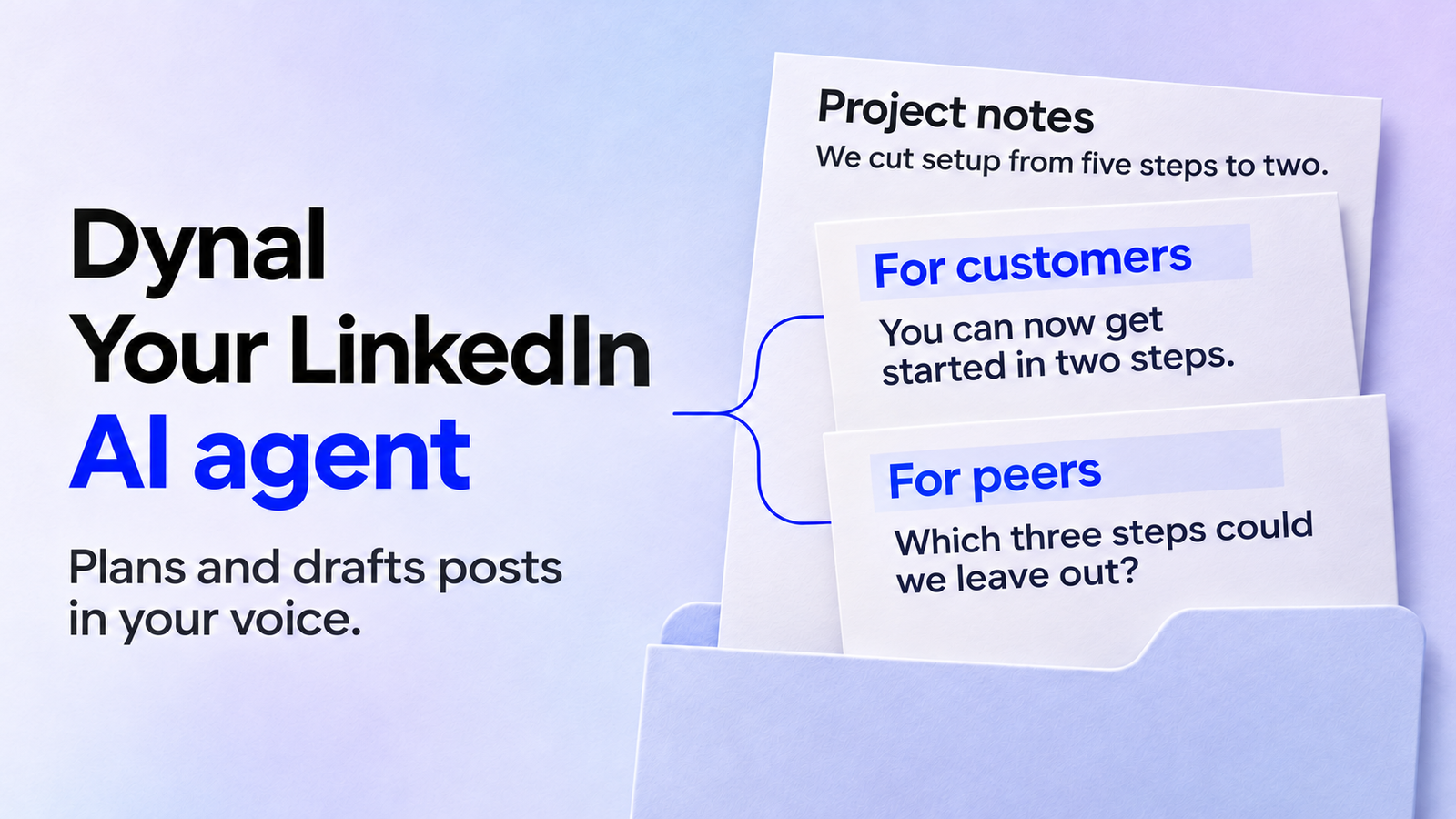
After a project presentation, you may have slides, notes and audience questions. A client who missed it might ask, “When would this approach work for us?” A peer might want to know why you changed the plan halfway through. If you’re mapping out the next two weeks of posts, you can work through those angles with Dynal.
Dynal is a LinkedIn AI Agent that plans content around your growth goals. Give Dynal your project notes and tell it who you want to reach. It uses the business context, audience and tone in your Brand DNA to suggest topics and draft posts in your voice. Add the details only you know, then publish or schedule the post when it’s ready.
After publishing, check the post’s performance in Dynal and read the questions people actually asked in the comments. Those questions can point you toward the next angle in the same notes.