

How to Browse LinkedIn Profiles Privately
Want to look at a colleague’s, recruiter’s, or potential client’s LinkedIn profile without showing your name? Turn on Private mode before you visit their profile.
The quick route: Open your account settings → Visibility → Visibility when viewing other profiles → Private mode. Your choice is saved automatically. You can use private mode with a free account, but doing so disables your own profile viewer history.
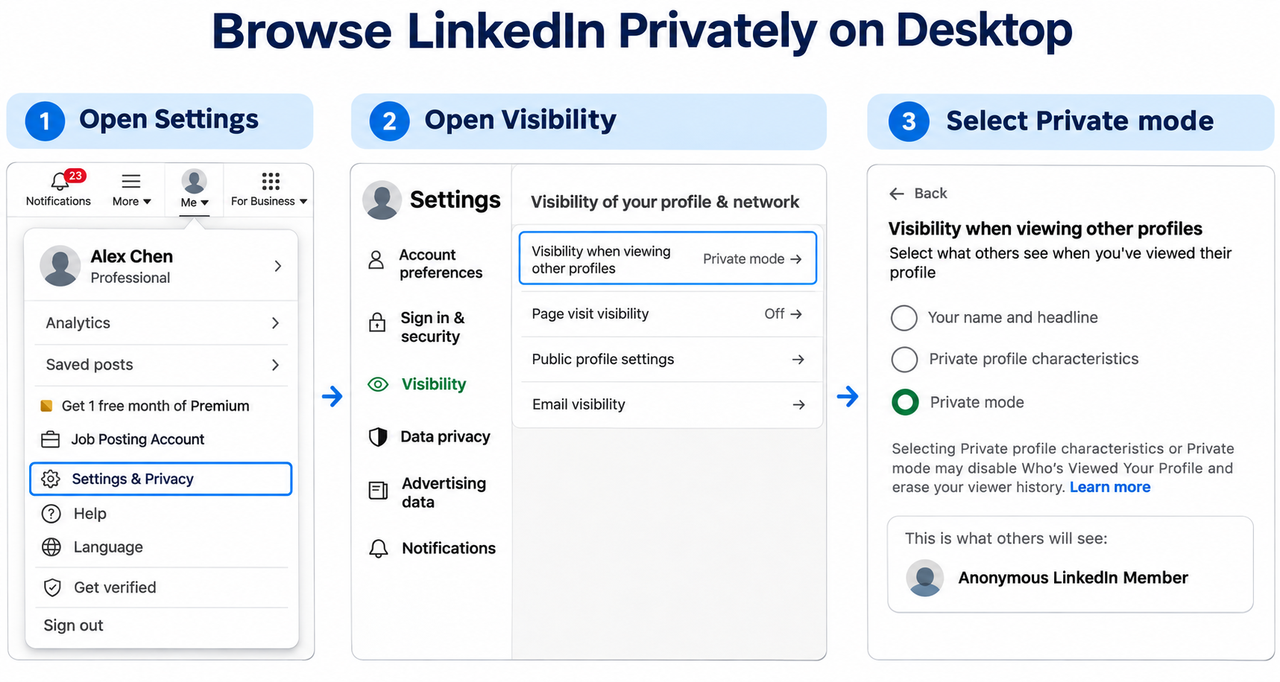
How to turn on LinkedIn private mode on desktop
- Sign in to LinkedIn and click Me beneath your profile photo at the top of the page.
- Select Settings & Privacy.
- Select Visibility in the left sidebar.
- Under Visibility of your profile & network, open Visibility when viewing other profiles. In some versions, this option may be called Profile viewing options.
- Select Private mode. Your change is saved automatically—there is no separate Save button.
Before opening another person’s profile, check that Private mode is selected, rather than Private profile characteristics.
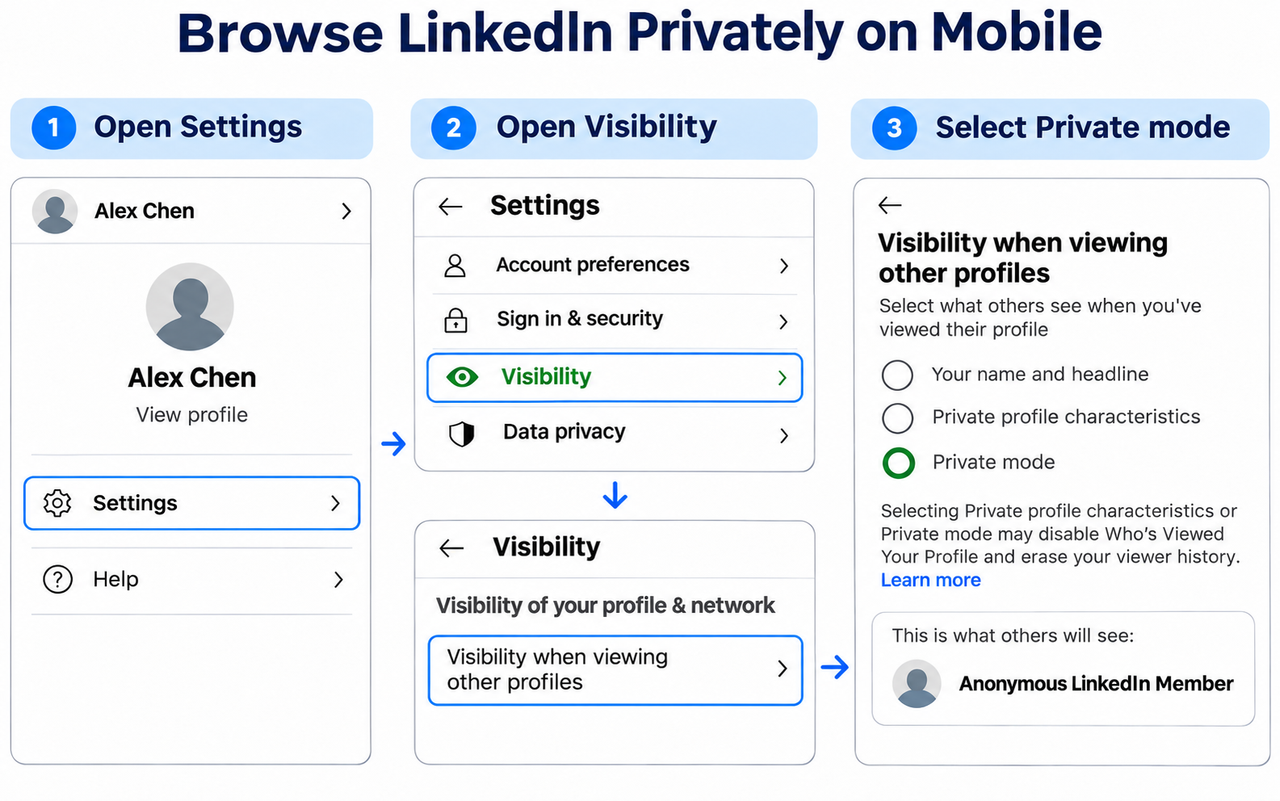
How to turn on LinkedIn private mode on mobile
- Open the LinkedIn app and tap your profile photo.
- Open Settings. Depending on your app version, the label may appear as Settings & Privacy.
- Tap Visibility.
- Open Visibility when viewing other profiles.
- Select Private mode, then leave the settings screen. Your choice is saved automatically.
What does LinkedIn private mode hide?
Private mode controls the identity information people see in their profile viewer history after you visit their profile.
With private mode enabled, they may still see that an anonymous LinkedIn member visited. They will not see your name or personal profile information in that viewer entry. Anonymous browsing does not mean there is no record of a visit.
LinkedIn offers three ways to appear when you view someone’s profile:
1. Public identity
- They can see your name, headline, and profile information.
- Use this when you want the other person to recognize you and potentially visit your profile.
2. Private profile characteristics
- They can see selected professional or background characteristics, such as your role, company, school, or industry, but not your name.
- Use this when you are comfortable sharing some background but do not want to reveal your name.
3. Private mode
- They see an anonymous LinkedIn member entry.
- Use this when you want to learn about someone before revealing your identity.
The Private profile characteristics option provides only partial anonymity. If you do not want to share professional or background details, select Private mode.
Do you need LinkedIn Premium to browse privately?
No. Both free and Premium members can use private mode. The difference is whether you can browse anonymously while still viewing your own profile visitors.
Basic (free)
- You can use private mode.
- Once it is enabled, you can no longer view your own profile viewer history.
Premium
- You can use private mode.
- You can keep the profile viewer features included in your plan.
- You still cannot identify people who viewed your profile in private mode.
You do not need to upgrade to Premium just to browse anonymously.
Two things to know before you use private mode
Private browsing does not hide your public profile
Your browsing mode controls how you appear when you visit other people’s profiles. It does not control whether your own profile appears in Google or other search engines. To change that, adjust your public profile visibility separately. See LinkedIn’s privacy FAQs.
Set the mode before you view a profile
Set your browsing mode before opening the profile you want to view. Do not wait until after the visit to switch to private mode. Some search suggestions can also open a mini profile when you select a member’s name or photo, and that interaction may count as a profile view. The safest order is: confirm your browsing mode → search for the person → open their profile.
Frequently asked questions
Can a Premium member identify me if I use private mode?
No. Premium does not reveal the identity of private-mode visitors. LinkedIn respects the visitor’s privacy setting, even when the person being visited has a paid account.
How do I turn off private mode?
Go back to Visibility when viewing other profiles and select Your name and headline. This makes your identity visible on subsequent profile visits, so choose it only when you are comfortable being identified.
Keep up with the people you’re researching
If you want to keep up with colleagues, recruiters, or potential clients, open Dynal Trending, select Tracking, and add the accounts you want to follow. You can then monitor their content updates in one place, right in Dynal.