

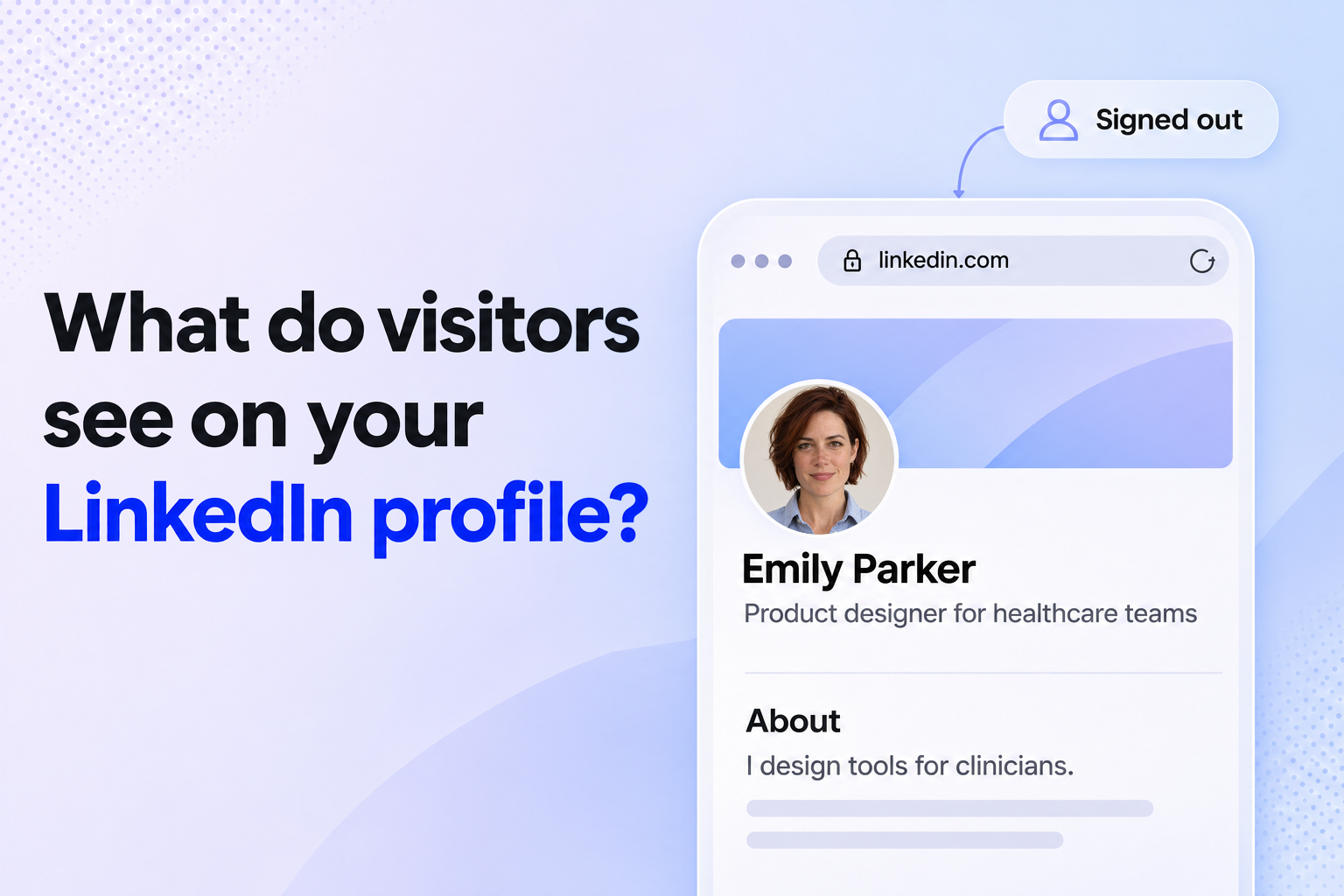
Before you put your LinkedIn profile on a résumé, in an email or in a social media bio, open it as a visitor. You see editing controls when you sign in. What someone else sees depends on your public profile settings, whether they're signed in and how they're connected to you.
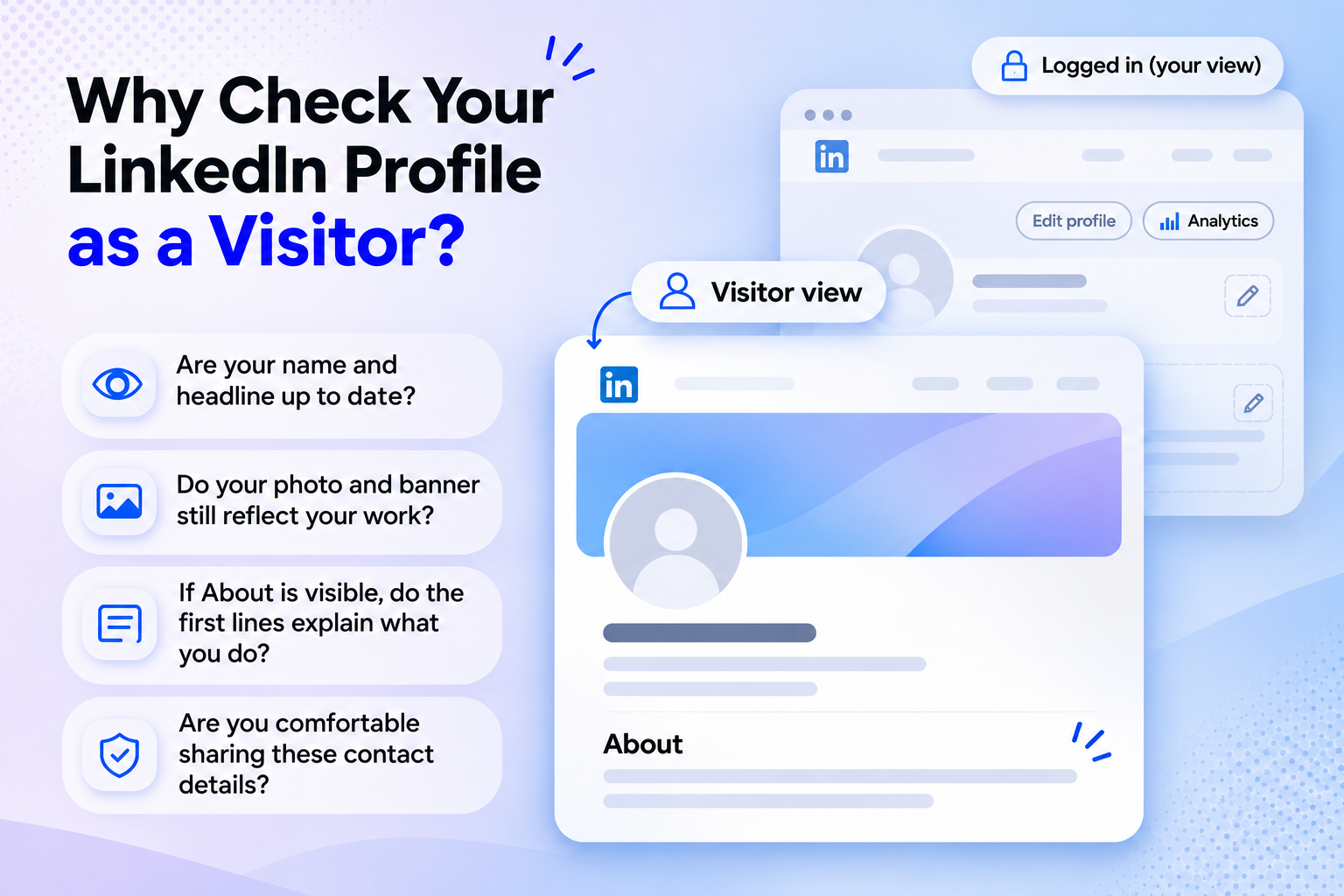
Why check the visitor view?
You can see and edit the details you've entered. A recruiter following a link from your résumé or a prospective client opening your email may see a different selection. A fresh look can also reveal something you've stopped noticing, like a headline that still lists your previous job.
Open the link in a browser where you're signed out and check:
- Are your name and headline up to date?
- Do your photo and banner still reflect your work?
- If your About section is visible, do its opening lines explain what you do?
- Are you comfortable sharing the contact details and other information on display?
Ways to check your public profile
The settings page shows which sections you've made public. To see how the link opens for someone else, try a private window on a computer or phone.
1. Public profile settings
Here you choose which sections are eligible to appear to signed-out visitors and in search engines.
2. Signed-out browser view
Paste your profile link into a private Safari or Chrome window. This view is usually shorter than the signed-in profile, and LinkedIn may ask you to sign in.
3. Mobile browser view
Many people open profile links on a phone. Use a private tab to check where your headline cuts off, what fits on the first screen and whether the sections read naturally as you scroll.
How to preview your public profile on desktop
Once signed in, open Public profile settings directly, or start from the LinkedIn homepage:
- Click Me in the top navigation bar.
- Select the profile card with your name and photo.
- In the right-hand column, click the pencil next to Public profile & URL.
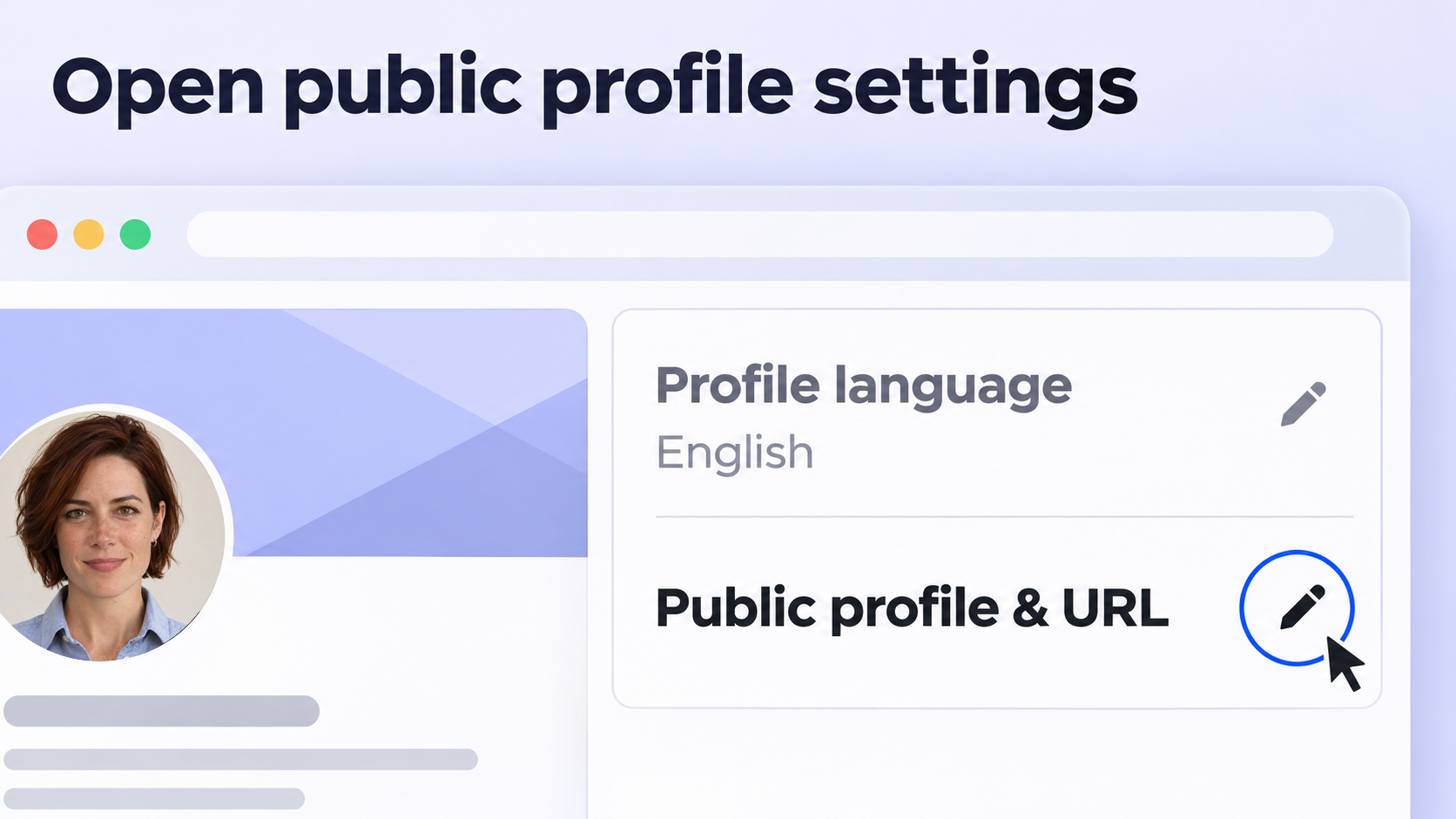
Preview your profile and choose which sections to show. Turn off an individual section to hide it, or switch off Your profile’s public visibility to hide the whole public profile. Changes are saved automatically.
Your public profile is a simplified version of your full profile. LinkedIn may show only some of the sections you've allowed. How LinkedIn handles public profiles
How to check your profile on a phone
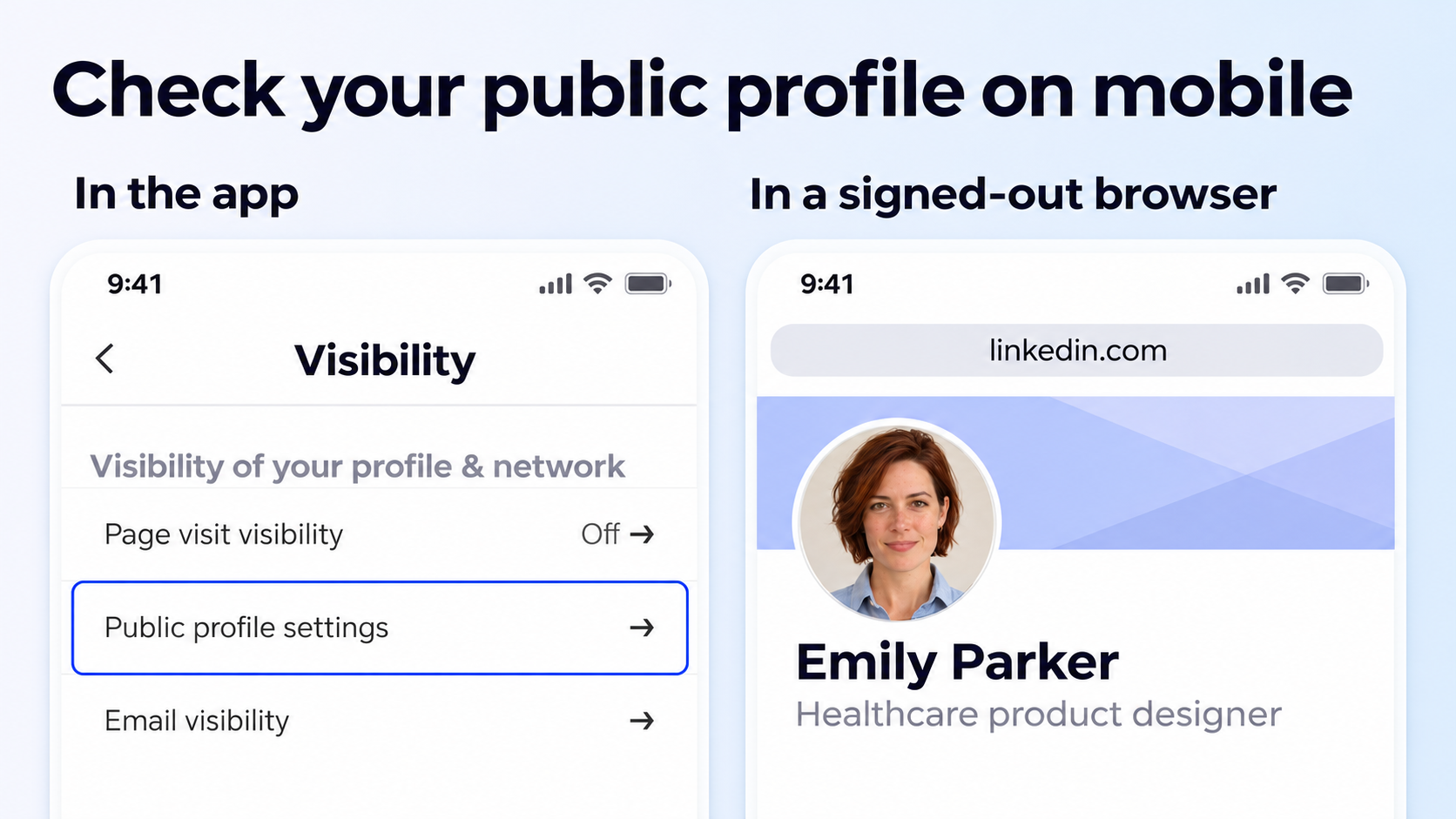
Use the app to adjust what's public, then open the link in a signed-out mobile browser to see how it appears.
- Tap your profile photo at the top left.
- Tap Settings & Privacy.
- Open Visibility.
- Tap Public profile settings.
- Turn the sections you want to share on or off.
- Copy your profile link and open it in a private Safari or Chrome tab.
What can someone see without signing in?
- Open your LinkedIn profile.
- Copy your profile URL, such as linkedin.com/in/yourname.
- Open an incognito or private browsing window.
- Paste the URL and open it.
- Check the first screen, then scroll through the sections you intended to share.
Even if your profile is public, LinkedIn may show a limited preview or prompt the visitor to sign in on their first visit.
A private window shows what's visible now. Google or Bing may still show an old job title in search results. Search engines can take weeks or even months to pick up changes.
Why visitors see different information
- Signed-in members can usually view your profile even if you aren't directly connected. Your settings determine who can see your photo, email address and connections.
- Signed-out visitors see the public profile. LinkedIn may display only some of the sections you've made public.
Use the settings preview to check the switches, then open the link while signed out to see what appears first and how the page reads.
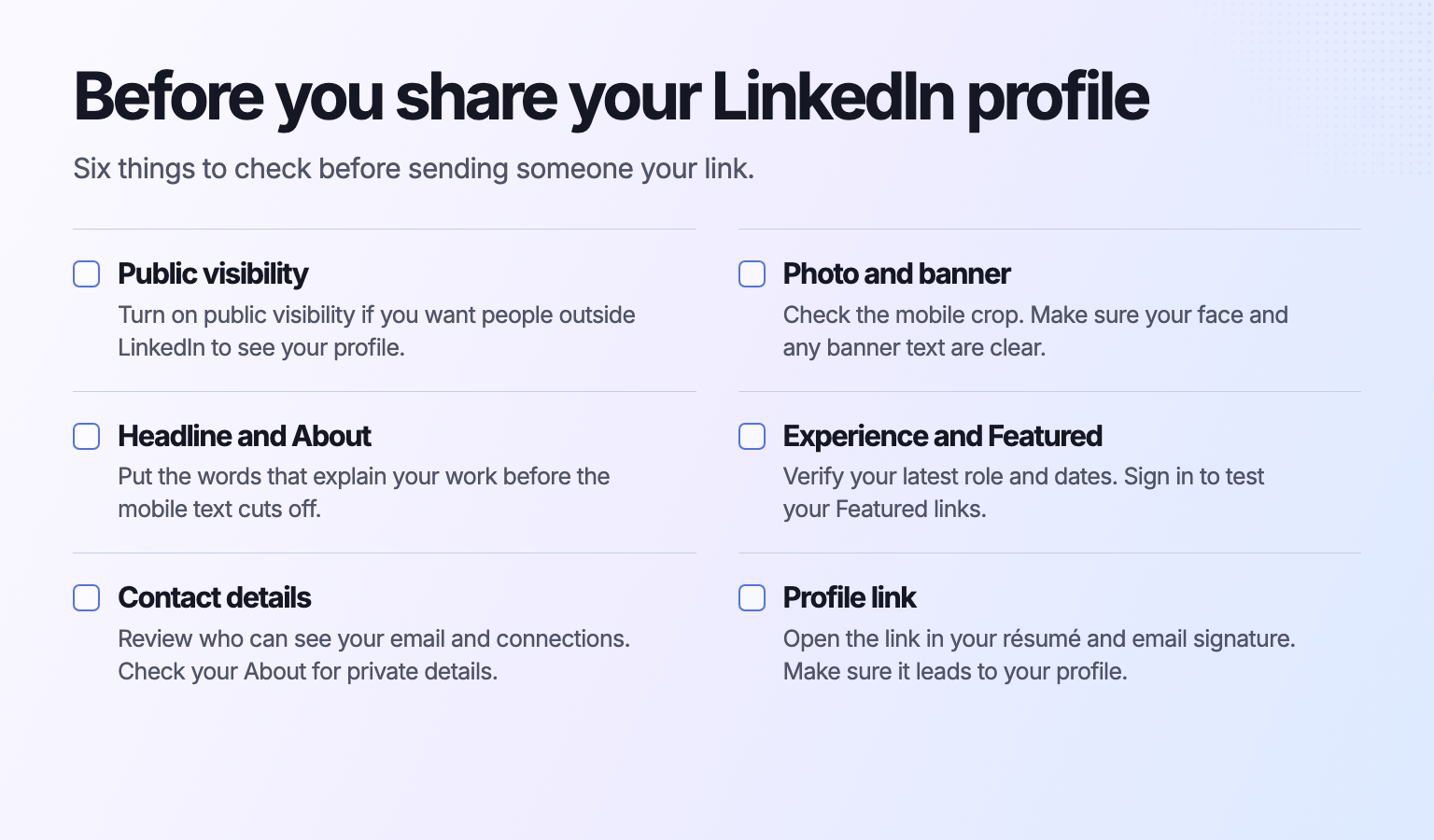
Six things to check before sharing your LinkedIn profile
- Public visibility. To let signed-out visitors see your details, turn on Your profile’s public visibility and select the sections to share.
- Photo and banner. On a phone, is the photo clear? Has any text on the banner been cropped? If the photo is missing, check its visibility settings.
- Headline and About. Read your headline and the opening lines of your bio on a phone. Put the words that best describe your work before the text cuts off.
- Experience and Featured. Confirm the title and dates of your latest role, then sign in and test your portfolio links. Visitors must sign in to see Featured content, so include a direct link to your work on your résumé.
- Contact details and connections. Under Visibility, Email visibility and Connection visibility control who can see your email address and connections. Check your bio for personal phone numbers or email addresses too.
- Profile link. You can customize the part after linkedin.com/in/. If you change it, update your résumé and email signature.
After changing jobs, adding new work or updating privacy settings, open the link again in a private tab on your phone. Check that people can see what you meant to share and that personal details stay private.
Frequently asked questions
Can I preview my profile as a specific connection?
You can't select a particular connection and see their exact view. To check what a signed-out reader of your résumé might see, open your profile link in a private window.
If I view someone's profile while signed out, will they know it was me?
Your name won't appear in their viewer list. If the link opens in the LinkedIn app while you're signed in, what they see depends on your Visibility when viewing other profiles setting.
Why does Google still show my old job?
Open the search result and check the position on your profile. If it's up to date, give Google time to refresh the snippet. If the old job is still on the page, check both Headline and Experience.
What your posts add to your profile
Someone who enjoys a post may click through to see what you do. If your last update was six months ago, or your recent posts have little to do with your work, it can be hard for them to get a feel for your expertise.
For your next post, start with a question a client recently asked or an idea from your work. Give Dynal’s LinkedIn AI Agent the question and your answer to develop an angle and draft. Add your own experience and check the details. Once your LinkedIn account is connected, you can publish from Dynal. Readers can then see what you specialize in and how you put it into practice.